You’re receiving price alerts for Lenovo Slim Pro 7
Like
Unusual combination of power and portability
Sharp, fast display
Rugged chassis
Long-running battery
Don’t like
Drab exterior
Limited storage space
“Clacky” touchpad
Geared toward content creators whose work has them on the go, the Lenovo Slim Pro 7 offers an uncommon combination of power and portability. It’s built around a 14.5-inch, 90Hz display and powered by an AMD Ryzen 7 and entry-level Nvidia GeForce RTX 3050 discrete graphics. Content creation laptops usually pair a dedicated GPU with a larger 16- or 17-inch display that provides a larger canvas on which to work at the expense of travel ease. With a 14.5-inch display and thin, compact chassis, the Lenovo Slim Pro 7 weighs only 3.5 pounds and makes a better travel companion than a full-size mobile content creation station.
And while the display may be smaller than the usual, it’s fine and fast with a 2.5K resolution that’s finer than the usual full-HD resolution and a 90Hz refresh rate that’s faster than the typical 60Hz panel. Add in long battery life and a rugged chassis, and the Lenovo Slim Pro 7 makes a compelling case for wandering content creators or part-time gamers. The laptop’s pedestrian looks, however, may underwhelm graphics pros with an eye for style.
Lenovo Slim Pro 7
Price as reviewed
$1,200
Display size/resolution
14.5-inch 2,560 x 1,600 90Hz IPS Touch Display
CPU
3.2GHz AMD Ryzen 7 7735HS
Memory
16GB DDR5 6,400MHz
Graphics
6GB Nvidia GeForce RTX 3050
Storage
512 GB PCIe Gen 4 M.2 SSD
Networking
Wi-Fi 6E* 802.11AX (2 x 2) Bluetooth 5.1
Operating system
Window 11 Home 22H2
Lenovo makes only one model of the Lenovo Slim Pro 7, and it’s not customizable. It’s available direct from Lenovo and also at Best Buy for $1,200 and, at the moment, it’s only $900. It features a 14.5-inch display powered by AMD Ryzen 7 7735HS, 16GB of RAM and Nvidia GeForce RTX 3050 graphics. It also supplies a 512GB SSD. The 14.5-inch, 16:10 display features a 2.5K resolution (2,560×1,600 pixels), a 90Hz refresh rate and touch support. The Ryzen 7 7735HS CPU is a member of AMD’s latest Ryzen 7 7000 series and has eight cores, 16 threads and a base frequency of 3.2GHz. The RTX 3050 is the entry-level GPU in Nvidia’s previous RTX 30 series.
In lab testing, the Slim Pro 7 proved itself to be a strong performer and long runner. Along with the AMD-based HP Dragonfly Pro, it trailed the two Intel-based laptops, the Asus ROG Flow Z13 and Dell XPS 15, on the PCMark and Geekbench tests, but the AMD pair was able to flip the script on Cinebench. Although the Slim Pro 7 isn’t designed to be a gaming laptop, we ran our 3D graphics and gaming benchmarks to see what the RTX 3050 could handle. And it performed admirably on these tests, keeping pace and in some instances outpacing the Asus and Dell laptops that feature RTX 3050 Ti graphics. And the Slim Pro 7 was the runaway winner on our battery life test, easily outpacing the others here with a running time of more than 12 hours on our demanding online streaming battery drain test.
Dull gray but rugged chassis
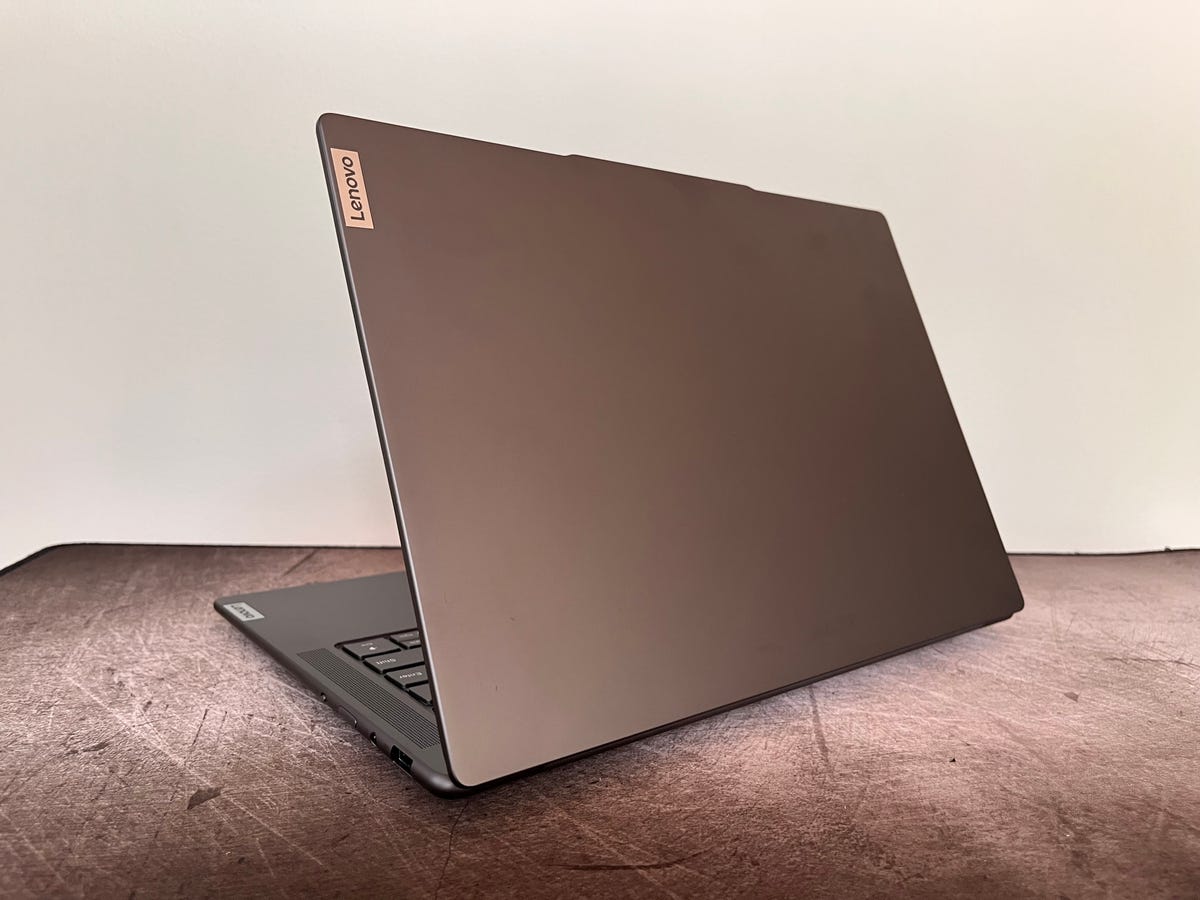
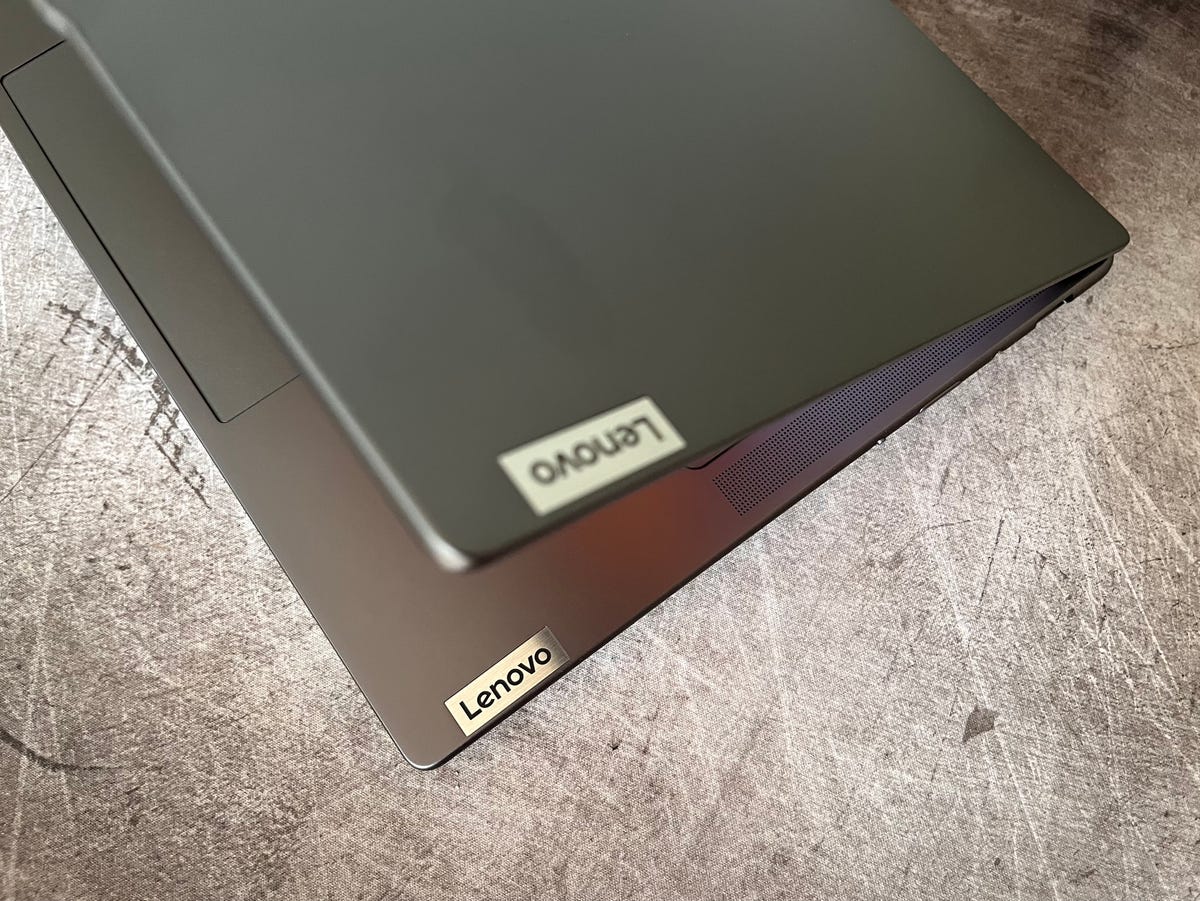
The Slim Pro 7 has an all-aluminum chassis with a staid, all-business look. It’s entirely a dark gray color that Lenovo calls Storm Gray. The lid is dark gray, the keyboard deck is gray, the keys are dark gray and the bottom panel is dark gray. That’s a lot of a rather dull, dark gray. We’ve asked laptop makers in the past why color options regularly lean toward drab in the US and the standard answer is, “Other colors don’t sell well.” And this dark gray is the result.
The only accents are small silver Lenovo badges on the left edge of the keyboard deck and the left edge of the lid. It lacks the style of the HP Dragonfly Pro, which features a gorgeous, minimalistic design with a matte-black finish and gently rounded edges.
Matt Elliott/CNET
What the Slim Pro 7 lacks in looks, it makes up for in ruggedness. The chassis feels very firm and has passed MIL-STD 810H tests, proving an ability to withstand drops, vibration, shock, dust, altitude and extreme temperatures. The military-grade ruggedness doesn’t turn the Slim Pro 7 into a hulking laptop, though. It measures a trim 12.8 inches wide by 8.9 inches deep and is only 0.6-inch thick. It weighs 3.56 pounds, which is basically the same as the 3.52-pound MacBook Pro 14 and slightly heavier than the 14-inch HP Dragonfly Pro which weighs 3.42 pounds.
The display hinge is stellar. It might seem odd to praise a hinge, but it runs nearly the width of the laptop and holds the display firmly in place while also gliding smoothly when you open and close the lid. And the lid is easy to open, thanks to the notch that gently juts out from the center of the top edge of the display.
The keyboard feels roomy and comfortable with snappy feedback for fast and accurate typing. The touchpad, however, sounds a bit “clacky.” It offers a bit too much travel and emits a louder-than-usual sound when clicked. The keyboard offers two-level backlighting, and there’s also an Auto setting that turns on the backlighting when conditions darken.
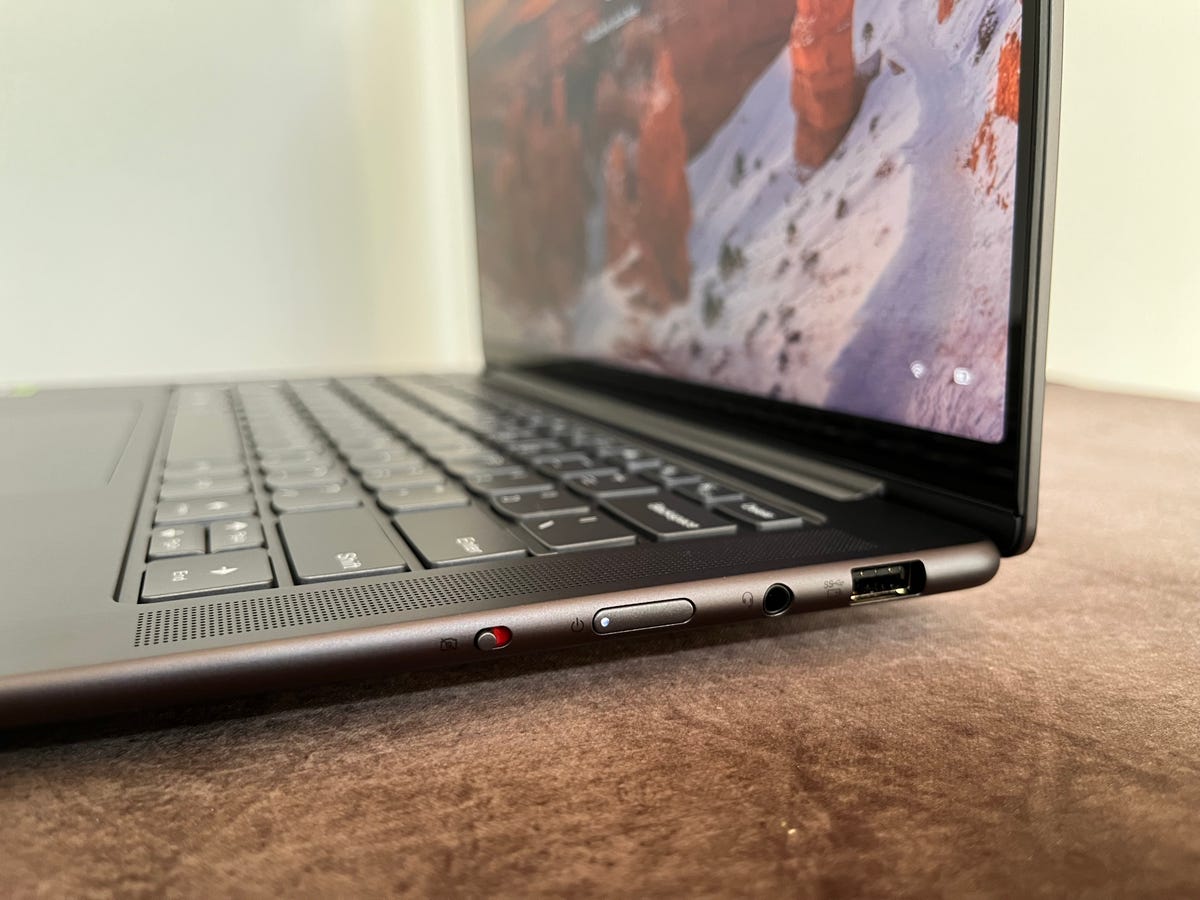
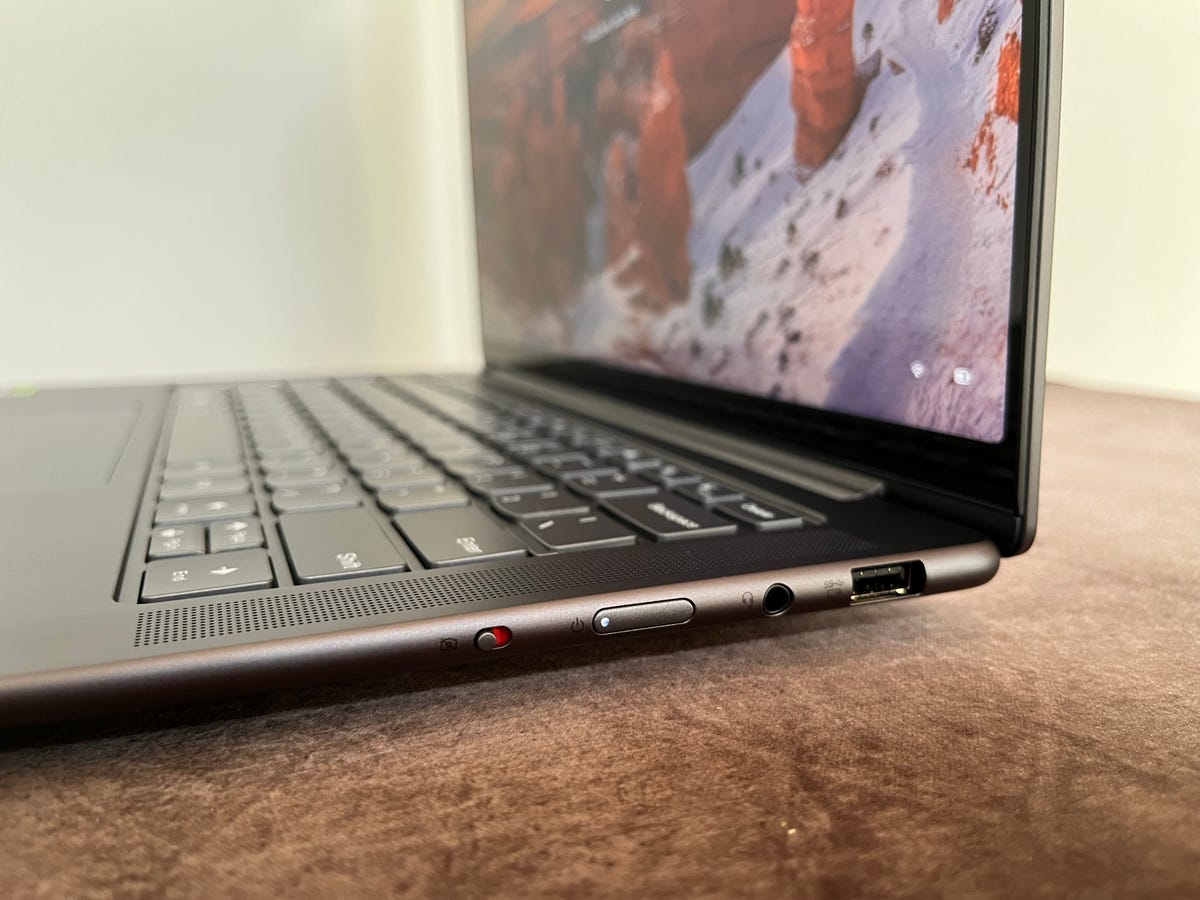
The keyboard lacks a fingerprint reader, but the webcam is an IR camera that lets you skip entering a password and log in using facial recognition. The camera also has a 1080p sensor that creates better-balanced images with less grainy noise than previous-generation 720p webcams. And when you aren’t video conferencing, you can flip the kill switch on the laptop’s right edge to kill the power to the camera to protect your privacy.
A fine display
The 14.5-inch display’s 2.5K resolution sits at the midway point between the 14-inch HP Dragonfly Pro’s Full HD (1,920×1,200-pixel) panel and the 14-inch MacBook Pro’s Liquid Retina XRD display that has a 3,024×1,964-pixel resolution. Having just reviewed the Dragonfly Pro and using the 14-inch MacBook Pro as my everyday laptop, I can state with authority that the Slim Pro 7’s display is closer to that of the MacBook Pro than Dragonfly Pro. Text looks crisp and inky black as it does on the MacBook Pro, with none of the blurriness I saw with text on the Dragonfly Pro. The Slim Pro 7 is the least bright, however, of this trio. It’s rated for 350 nits of brightness, and I measured a peak brightness of 375 nits with a lux meter. The Dragonfly Pro is rated for 400 nits and hit 450 nits in my testing, while the MacBook Pro hits a peak of 500 nits.
Video editors will appreciate the panel’s 90Hz refresh rate, which is 50% faster than the typical 60Hz panel. I was unable to detect smoother movement in watching videos, but video pros ought to notice a difference when engaged in their detailed editing work.
Video editors may not appreciate the Slim Pro 7’s 512GB SSD, which could quickly reach full capacity if you are working with large video files. Even an option to upgrade the SSD to a larger size would be useful, but Lenovo offers only one model of the Slim Pro 7, and it’s a fixed configuration.
Narrow speaker grilles flank the keyboard, and behind each one is not one but two speakers. The Slim Pro 7’s audio output is fuller than that of typical laptop stereo sound. Music playback lacks bass, but the four speakers produce enough oomph to fill a small room.
The Slim Pro 7 features a pair of USB-C ports — one USB 3.2 Gen 2 port with 20Gbps speed and a faster 40Gbps USB 4 connection — along with a USB Type-A port on the right side to connect a mouse or an older USB peripheral. You also get an HDMI port and a headphone jack but no Ethernet jack, which would be handy for uploading large photo and video files.
If the staid design and smallish SSD don’t trip you up, there’s a lot to like about the rugged and compact Lenovo Slim Pro 7, especially when it’s on sale with a hefty $300 discount. It’s a rarity among content creation laptops in packaging RTX graphics in a laptop that’s smaller than 15 inches; most at this size are for gaming. What you sacrifice in screen real estate with the 14.5-inch display you gain in portability with a 3.5-pound travel companion. And stepping down in display size doesn’t also step you down to a full-HD resolution — the display’s 2.5K resolution looks incredibly sharp across the 14.5-inch panel. The Slim Pro 7’s long battery life also extends its portability — this is a laptop that will likely get you through the workday on a single charge.
How we test computers
The review process for laptops, desktops, tablets and other computer-like devices consists of two parts: performance testing under controlled conditions in the CNET Labs and extensive hands-on use by our expert reviewers. This includes evaluating a device’s aesthetics, ergonomics and features. A final review verdict is a combination of both objective and subjective judgments.
The final leg of the US horse racing’s Triple Crown is upon us, as the 155th Belmont Stakes takes place on Saturday in Elmont, New York.
Last month’s Preakness Stakes winner National Treasure is among nine horses lining up to be in contention for the top prize of $800,000, with scratched Kentucky Derby frontrunner Forte most pundits favorite ahead of stablemate, Tapit Trice.
It’s an extra special edition of the race this year, with 2023 marking the 50th anniversary of Secretariat’s historic triumph in the race. That race saw ‘Big Red’ set a track record time of 2:24 – a world record on dirt which still stands to this day.
Thursday’s practice races at Belmont Park were cancelled due to the dangerous levels of smoke from Canadian wildfires impacting New York’s air quality, however Saturday’s big race is still all set to go ahead as scheduled.
The 2023 Belmont Stakes takes place today and will be broadcast on Fox and FS1 in the US. Here’s how you can watch live, no matter where you are in the world.
Al Bello/Getty Images
When does the Belmont Stakes start?
The Belmont Stakes takes place today, June 10. TV coverage in the US begins at 4pm ET / 1pm PT to 7. while FS1 will be broadcasting live from Elmont from 11am ET / 8am PT.
Post time is set for approximately 7.02pm ET / 4.02pm PT on Saturday — that’s a 12:02 a.m. BST start on Saturday night / Sunday morning in the UK and 9:02 a.m. AEST on Sunday morning for those watching live in Australia.
How can I watch the Belmont Stakes on TV in the US?
If you don’t have cable, you still have plenty of options. The least expensive that doesn’t require streaming is to connect an over-the-air antenna to your TV and watch your local Fox station.
If you’re streaming on a PC, phone or tablet you can watch on the Fox website
You could also check out a live TV streaming service, all of which offer free trials. Not every service carries your local Fox station, however, so check the links below to make sure.
YouTube TV costs $65 a month for the first three months for new customers and $73 a month thereafter, and includes Fox in most markets. Plug in your ZIP code on its welcome page to see which local networks are available in your region.
Hulu With Live TV costs $70 a month and includes Fox in most markets. Click the “View channels in your area” link on its welcome page to see which local channels are offered in your ZIP code.
DirecTV Stream’s $75-a-month Plus package includes Fox and FS1 in most markets. You can use its channel lookup tool to see which local channels are available where you live.
How to watch the Belmont Stakes 2023 online from anywhere using a VPN
If you find yourself unable to view the Belmont Stakes locally, you may need a different way to watch the race — that’s where using a VPN can come in handy. A VPN is also the best way to stop your ISP from throttling your speeds on game day by encrypting your traffic, and it’s also a great idea if you’re traveling and find yourself connected to a Wi-Fi network, and you want to add an extra layer of privacy for your devices and logins.
With a VPN, you’re able to virtually change your location on your phone, tablet or laptop to get access to the game. Most VPNs, like our Editors’ Choice, ExpressVPN, make it really easy to do this.
Using a VPN to watch or stream sports is legal in any country where VPNs are legal, including the US, UK and Canada, as long as you have a legitimate subscription to the service you’re streaming. You should be sure your VPN is set up correctly to prevent leaks: Even where VPNs are legal, the streaming service may terminate the account of anyone it deems to be circumventing correctly applied blackout restrictions.
Looking for other options? Be sure to check out some of the other great VPN deals taking place right now.
ExpressVPN is our current best VPN pick for people who want a reliable and safe VPN, and it works on a variety of devices. It’s normally $13 per month, and you can sign up for ExpressVPN and save 49% plus get three months of access for free — the equivalent of $6.67 per month — if you get an annual subscription.
Note that ExpressVPN offers a 30-day money-back guarantee.
Livestream the Belmont Stakes 2023 in the UK
Horse racing fans in the UK can watch all the action live from Elmont via Sky and its At the Races channel. If you already have Sky Sports as part of your TV package, you can stream the Preakness Stakes via its Sky Go app, but cord-cutters will want to get set up with a Now account, and a Now Sports membership, to stream the race.
Sky subsidiary Now (formerly Now TV) offers streaming access to Sky Sports channels with a Now Sports membership. You can get a day of access for 12, or sign up to a monthly plan from 25 per month right now.
Can I livestream the Belmont Stakes in Canada?
Though TSN has been the long-term broadcaster of the Belmont Stakes across the border, this year’s event isn’t currently on the network’s schedule.
Livestream the Preakness Stakes in Australia
Racing fans Down Under can watch this year’s event on ESPN via Foxtel. If you aren’t a Fox subscriber, your best option is to sign up to streaming service Kayo Sports.
A Kayo Sports subscription starts at AU$25 a month and lets you stream on one screen, while its Premium tier costs AU$35 a month for simultaneous viewing on up to three devices.
The service gives you access to a wide range of sports including F1, NRL, NFL, F1, NHL and MLB, and there are no lock-in contracts.
Better still, if you’re a new customer, you can take advantage of a one-week Kayo Sports free trial.
Quick tips for streaming the Belmont Stakes 2023 using a VPN
With four variables at play — your ISP, browser, video streaming provider and VPN — your experience and success when streaming the race may vary.
If you don’t see your desired location as a default option for ExpressVPN, try using the “search for city or country” option.
If you’re having trouble getting the game after you’ve turned on your VPN and set it to the correct viewing area, there are two things you can try for a quick fix. First, log into your streaming service subscription account and make sure the address registered for the account is an address in the correct viewing area. If not, you may need to change the physical address on file with your account. Second, some smart TVs — like Roku — don’t have VPN apps you can install directly on the device itself. Instead, you’ll have to install the VPN on your router or the mobile hotspot you’re using (like your phone) so that any device on its Wi-Fi network now appears in the correct viewing location.
All of the VPN providers we recommend have helpful instructions on their main site for quickly installing the VPN on your router. In some cases with smart TV services, after you install a cable network’s sports app, you’ll be asked to verify a numeric code or click a link sent to your email address on file for your smart TV. This is where having a VPN on your router will also help, since both devices will appear to be in the correct location.
And remember, browsers can often give away a location despite using a VPN, so be sure you’re using a privacy-first browser to log into your services. We normally recommend Brave.
The Vegas Golden Knights dominated the first two games of the Stanley Cup Final on their home ice, and then the Panthers squeaked out an overtime win in Game 3 with a big-time penalty kill. In Game 4 tonight, Florida hopes to even the series against Jack Eichel and a Vegas Golden Knights team that’s powered its way through the Winnipeg Jets, Edmonton Oilers and the Dallas Stars to reach its second Stanley Cup Final in six years.
Neither the Panthers nor the Golden Knights have previously won a Stanley Cup. The Florida Panthers last went to the Stanley Cup Final in 1996, when they were swept by the Colorado Avalanche. The Vegas Golden Knights made it to the final in their inaugural season in 2018 but lost in five games to the Washington Capitals.
Whether you live in the US or are looking to follow the NHL action from around the world, we’ll outline the best live TV streaming services to watch the 2023 Stanley Cup Final, no matter where you are.
The Florida Panthers and the Vegas Golden Knights are battling it out in the Stanley Cup Final.
Jeff Bottari/Getty Images
Panthers vs. Golden Knights Game 3: When and where?
The series is in Sunrise, Florida, for Game 4 as the Panthers host the Golden Knights at FLA Live Arena. The puck drops tonight at 8 p.m. ET or 5 p.m. PT in the US — that’s 1 a.m. BST in the UK, and 10 a.m. AEST in Australia on Friday, June 9.
What’s the schedule for the rest of the NHL Stanley Cup Final?
The schedule for the rest of the best-of-seven NHL Stanley Cup Final series is as follows. All games will air in the US on TNT.
• Saturday, June 10: Golden Knights at Panthers, 8 p.m. ET (Game 4, Golden Knights lead 2-1).
• Tuesday, June 13: Panthers at Golden Knights, 8 p.m. ET (Game 5).
• Friday, June 16: Golden Knights at Panthers, 8 p.m. ET (Game 6, if necessary).
• Monday, June 19: Panthers at Golden Knights, 8 p.m. ET (Game 7, if necessary).
How to watch Panthers vs. Golden Knights Game 4 online from anywhere using a VPN
If you find yourself unable to view the game locally, you may need a different way to watch — that’s where using a VPN can come in handy. A VPN is also the best way to stop your ISP from throttling your speeds on game day, by encrypting your traffic, and it’s also a great idea if you’re traveling and find yourself connected to a Wi-Fi network and you want to add an extra layer of privacy for your devices and logins.
With a VPN, you’re able to virtually change your location on your phone, tablet or laptop to get access to the game. Most VPNs, like our Editors’ Choice, ExpressVPN, make it really easy to do this.
Using a VPN to watch or stream sports is legal in any country where VPNs are legal, including the US, UK and Canada, as long as you have a legitimate subscription to the service you’re streaming. You should be sure your VPN is set up correctly to prevent leaks: Even where VPNs are legal, the streaming service may terminate the account of anyone it deems to be circumventing correctly applied blackout restrictions.
Looking for other options? Be sure to check out some of the other great VPN deals taking place right now.
ExpressVPN is our current best VPN pick for people who want a reliable and safe VPN, and it works on a variety of devices. It’s normally $13 per month, and you can sign up for ExpressVPN and save 49% plus get three months of access for free — the equivalent of $6.67 per month — if you get an annual subscription.
Note that ExpressVPN offers a 30-day money-back guarantee.
Livestream Panthers vs. Golden Knights Game 4 in the US
This season marks the first time in decades that the Stanley Cup Final will be broadcast entirely on cable television, with the series being shown live on TNT and TruTV, and TBS showing all but Game 5.
How can I stream the games on my phone?
If you have a live TV streaming service (like Sling TV, YouTube TV or one of the ones below), you can use its app. If you have cable or satellite, you can use your provider’s app or watch via the TNT app. Click the person icon to sign in with your TV provider.
Sling TV’s Orange plan includes TNT and TBS in most major markets and costs $40 a month, with $10 off your first month.
TruTV is meanwhile available via Sling’s Blue package, which comes in at a slightly more expensive $45 per month albeit, but is also offered with a $10 off discount for the first month.
DirecTV Stream is expensive. It’s the priciest of the five major live TV streaming services. Its cheapest, $65-a-month Entertainment package includes TBS, TruTV and TNT. You can use its channel lookup tool to see which local channels and RSNs are available in your area.
It is worth noting that DirecTV has an additional $15 “advanced receiver service” fee that automatically applies and is added on to the sticker price, which makes the Entertainment package $80 per month.
Livestream Panthers vs. Golden Knights Game 4 in Canada for free
The great news for Canadian ice hockey fans is that every game of the 2023 Stanley Cup Final series will be shown on free-to-air CBC Sports. Pay TV provider Sportsnet will also be broadcasting every game.
You can stream the entirety of the Panthers vs. Golden Knights series live on CBC’s streaming service CBC Gem. There’s also the option to pay CA$5 per month for ad-free access to the service.
Livestream Panthers vs. Golden Knights Game 4 in the UK
Viewers in the UK can watch every 2023 Stanley Cup Final game live on Viaplay. This third game will be broadcast on Viaplay Sports 1, with the puck drop set for 1 a.m. BST in the early hours of Friday morning.
You’ll need to be a subscriber to Viaplay’s Total package to watch its Stanley Cup Final coverage, which is priced at 15 per month or 144 per year.
Viaplay currently has the UK broadcast rights to the United Rugby Championship, La Liga soccer, plus the IIHF Ice Hockey World Championship and Champions Hockey League.
Livestream Panthers vs. Golden Knights Game 4 in Australia
Select games from this year’s Stanley Cup Final can be watched Down Under on ESPN via Foxtel. If you’re not a Fox subscriber, your best option is to sign up for streaming service Kayo Sports.
A Kayo Sports subscription starts at AU$25 a month and lets you stream on one screen, while its Premium tier costs AU$35 a month for simultaneous viewing on up to three devices.
The service gives you access to a wide range of sports including F1, NRL, NFL, F1 and MLB, and there are no lock-in contracts.
Better still, if you’re a new customer, you can take advantage of a one-week Kayo Sports free trial.
Quick tips for streaming the Stanley Cup Final using a VPN
With four variables at play — your ISP, browser, video streaming provider and VPN — your experience and success when streaming Stanley Cup Final games may vary.
If you don’t see your desired location as a default option for ExpressVPN, try using the “search for city or country” option.
If you’re having trouble getting the game after you’ve turned on your VPN and set it to the correct viewing area, there are two things you can try for a quick fix. First, log into your streaming service subscription account and make sure the address registered for the account is an address in the correct viewing area. If not, you may need to change the physical address on file with your account. Second, some smart TVs — like Roku — don’t have VPN apps you can install directly on the device itself. Instead, you’ll have to install the VPN on your router or the mobile hotspot you’re using (like your phone) so that any device on its Wi-Fi network now appears in the correct viewing location.
All of the VPN providers we recommend have helpful instructions on their main site for quickly installing the VPN on your router. In some cases with smart TV services, after you install a cable network’s sports app, you’ll be asked to verify a numeric code or click a link sent to your email address on file for your smart TV. This is where having a VPN on your router will also help, since both devices will appear to be in the correct location.
And remember, browsers can often give away a location despite using a VPN, so be sure you’re using a privacy-first browser to log into your services. We normally recommend Brave.
But what about Hulu’s features? Though the platform isn’t as intuitive to use as I’d like, I’ve found plenty of ways to enhance the viewing experience. I’m sorry to say that Hulu lacks secret codes that unlock genre menus and other categories of content like Netflix. But with these tricks, you can still add a little razzle dazzle to your streaming flow.
One thing before we dive in: I learned the hard way that Hulu’s functions don’t work the same across all devices. That inconsistency may be frustrating, but you can check which supported devices work best with these tips by visiting Hulu’s help center.
Read more: Disney Plus and Hulu Content Will Stream in One App Later This Year
Use widgets for your mobile phone
Are you accustomed to watching the Hulu app on your phone? Android and iPhone users can switch to a customized Hulu widget that offers a one-click ride to content you were already watching or suggestions for new titles.
iOS users can tap and hold an empty space on their screens and when the add sign pops up, type in Hulu. You’ll be prompted to choose one of two widgets: “Jump Back In” or “Discover.”
If you have an Android phone, tap an empty spot on your screen and then click the widgets icon. Search for Hulu in the search bar and then click which widget you want to use. You’ll have the option to pick from “Keep Watching” or new content.
Add and remove channels in your lineup
This tip applies to live TV and Hulu basic subscribers. You know how you select your favorite networks when you first set up your Hulu profile? Well, that doesn’t have to be set in stone. If you want to add a channel to your viewing lineup, you’ll need to store your preferred networks in the “My Stuff” tab in Hulu.
From the main screen, find the TV tab and scroll down to find the “All TV Networks” row. Click on the channel that has a constant stream of content you want to watch. For example, if you like ABC’s shows, select its icon and in the upper corner, click “Add to My Stuff.” You’ll now see ABC content in your Hulu main page rotation. Repeat the process for other networks. When you navigate to the My Stuff tab, and hit Networks, you’ll see a list of all the channels you’ve added. Fast-track yourself to your favorite shows or movies by clicking on the channel’s icon.
Add specific channels to your main Hulu lineup.
Screenshot by Kourtnee Jackson/CNET
Live TV subscribers follow a different set of steps. Open up the Hulu app and click on Hubs. Scroll down to the A-Z section to select the network channels you want, and then tap Add to My Stuff, or choose them from one of the other rows for entertainment, sports, etc. To verify that they’re part of your channel lineup, hit the Live tab and click on My Channels.
To remove any of these networks from your main Hulu page, simply find the network icon in My Stuff and click remove.
Customize your subtitles
Like Netflix, Hulu gives you the ability to tailor subtitles on the screen. You can alter the font, background and window appearance for your programming. Open the app on your TV and navigate to your profile icon. Click Settings and open the Subtitles and Captions menu. You can change the font color, opacity and shadowing, and make the same adjustments to your background and window.
This formatting process will only work on supported devices that run the latest version of Hulu. Certain models for Roku, Android TV, Samsung TVs and Apple TV (pre-fourth generation) may not have this function.
However, if you’re watching from a web browser, you can toggle the subtitle font settings. While a video is streaming, click the gear icon. Choose Subtitles. In the subtitles menu, tap Settings, and a box will open that allows you to choose font type, color, size and opacity. Click Done after you’ve made your selections.
Save your eyes with Night Mode
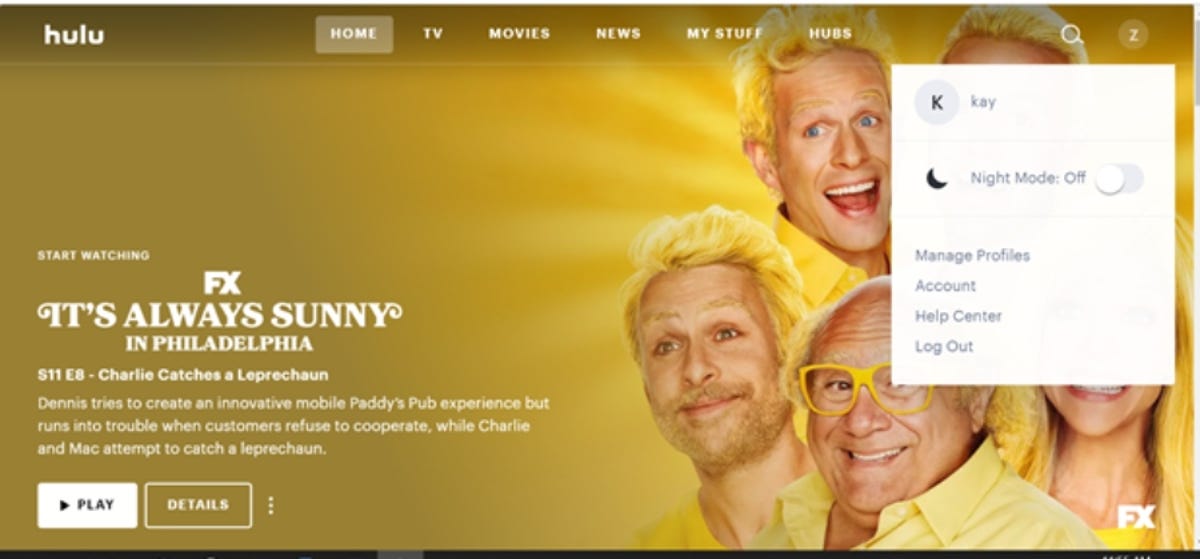
For those who watch Hulu late at night on a laptop, there’s a feature that will make your ophthalmologist happy: Night Mode. It changes your screen from a light, white background to a dark one to reduce blue light strain on the eyes.
To enable it, hover the cursor over your profile until you see the dropdown menu. Toggle Night Mode to the on or off position. Though this option is only available on computers, you can use the cast feature to stream Hulu from your laptop to Chromecast or your smart TV.
Lower blue light exposure with Hulu’s night mode.
Screenshot by Kourtnee Jackson/CNET
Pause your subscription
Heading out on a trip? Need a break from one of your monthly bills? You can temporarily put Hulu on ice for up to 12 weeks. Go to your account page and find your subscription column. Click Pause on the Pause Your Subscription bar and choose how long you want to stop Hulu.
You won’t be billed during this time but note that the freeze kicks in on the first day of your next billing cycle. Additionally, know that if you’ve bundled Disney Plus and/or ESPN Plus with your Hulu subscription, access to those apps will be on pause, too.
Unless you restart your subscription manually, your account will automatically be reactivated on the date your pause expires. That will become your new billing date.
Disable autoplay
If you use Netflix regularly, then you’re probably accustomed to its autoplay feature that rolls into the next episode or preview. Hulu does the same thing, and you’re able to turn it on or off.
Sometimes manually selecting the next episode is too much work — we get it! To make your streaming experience as seamless as possible, be sure to enable Autoplay to automatically queue up what’s next.
▶️ Want to learn more? Visit: https://t.co/vGGBCCXRpmpic.twitter.com/O3LksVSHfg
For TV and mobile devices, click on your profile icon and then select Settings. Toggle Autoplay to off for videos or previews. If you’re streaming Hulu on a web browser, click the gear icon during playback to open up Settings. Toggle Autoplay to off.
Clean up your watch history
Did you finish binge-watching your way through every season of a few shows? What about that horror movie spree from last Halloween? If you want to rewatch a piece of content from the beginning or have the urge to declutter your watch history, there’s a way to remove what you’ve already seen.
On your TV, go to a series or movie’s details page. Click the gear icon that says Manage Series. You’ll be asked to confirm whether you want to remove the title from your watch history. Choosing Remove will not only delete it from your history and Keep Watching list, but it will also erase your viewing progress for an entire series or movie. This is handy if you want to watch something all over again.
Mobile and web users should start on the home page and find the Keep Watching section on Hulu. Locate the title’s thumbnail to open up menu options. Click X or Remove from Watch History and verify your selection.
Lost remote? Let your phone guide you
If a gremlin hid your TV’s remote control, fear not, you can still watch Hulu on your big screen by using your phone. How? If you have Chromecast or Airplay on your TV, install the Hulu app on your phone (or other mobile device) cast it.
Be sure your phone and TV are connected to the same Wi-Fi, and then open the app on your phone. Choose the content you want to watch and tap either the Airplay or Cast icon. Select Chromecast or your smart TV from the menu and enjoy streaming. You can control playback functions with your phone.
Everyone needs a cellphone case — and that includes Dad. iPhones aren’t cheap, so it’s important to keep it guarded from damaging drops and scratches. And if you or your father figure are in need of a new case to protect your investment, now is a great time to grab one — along with some accessories. Right now you can save 30% on Totallee cases and accessories at Amazon when you use promo code TOTALLEE30 at checkout as well as directly from Totallee, where the savings are automatically applied. You can take advantage of this Father’s Day deal now through June 18.
Bulky cases can be a hassle. Totallee’s cases are sleek, simple and stylish, with an uncomplicated, slim design that fits easily into your — or Dad’s — pocket. And with the durable protection that makes Totallee one of our picks for best iPhone 14 cases out there, you can spoil Dad, yourself and anyone else you need to get cases for at a great discount. They come in clear and a collection of fun colors and aesthetics, so you can match your old man’s style with ease. And with useful accessories like chargers, phone grips and more on sale, you can afford to be extra generous.
Advertiser Disclosure
Advertiser Disclosure
This advertising widget is powered by Navi and contains advertisements that Navi may be paid for in different ways. You will not be charged for engaging with this advertisement. While we strive to provide a wide range of offers, this advertising widget does not include information about every product or service that may be available to you. We make reasonable efforts to ensure that information in the featured advertisements is up to date, each advertiser featured in this widget is responsible for the accuracy and availability of its offer details. It is possible that your actual offer terms from an advertiser may be different than the offer terms in this advertising widget and the advertised offers may be subject to additional terms and conditions of the advertiser which will be presented to you prior to making a purchase. All information is presented without any warranty or guarantee to you.
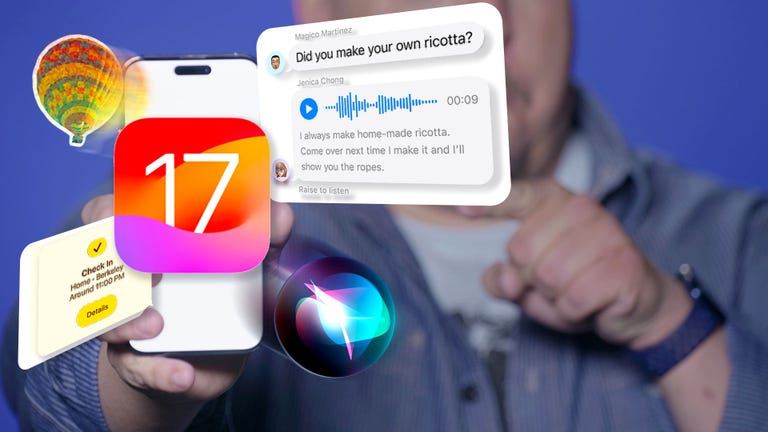
Apple’s debut of iOS 17 is going to change to how you call, text and glance at information on your iPhone. iOS 17 will bring updates to FaceTime, Messages and the phone app to make your iPhone feel more intuitive and personal, the company revealed Monday during its Worldwide Developers Conference.
Last year’s software update, iOS 16 introduced the ability to edit or “unsend” messages you send via iMessage, Apple Pay Later, a major overhaul to the lock screen, revamped notifications and Live Activities. These additions didn’t all come out at once and were actually scattered over the course of smaller iOS software updates throughout the year.
We can expect the same for iOS 17, which will likely be released just before the rumored iPhone 15 goes on sale.
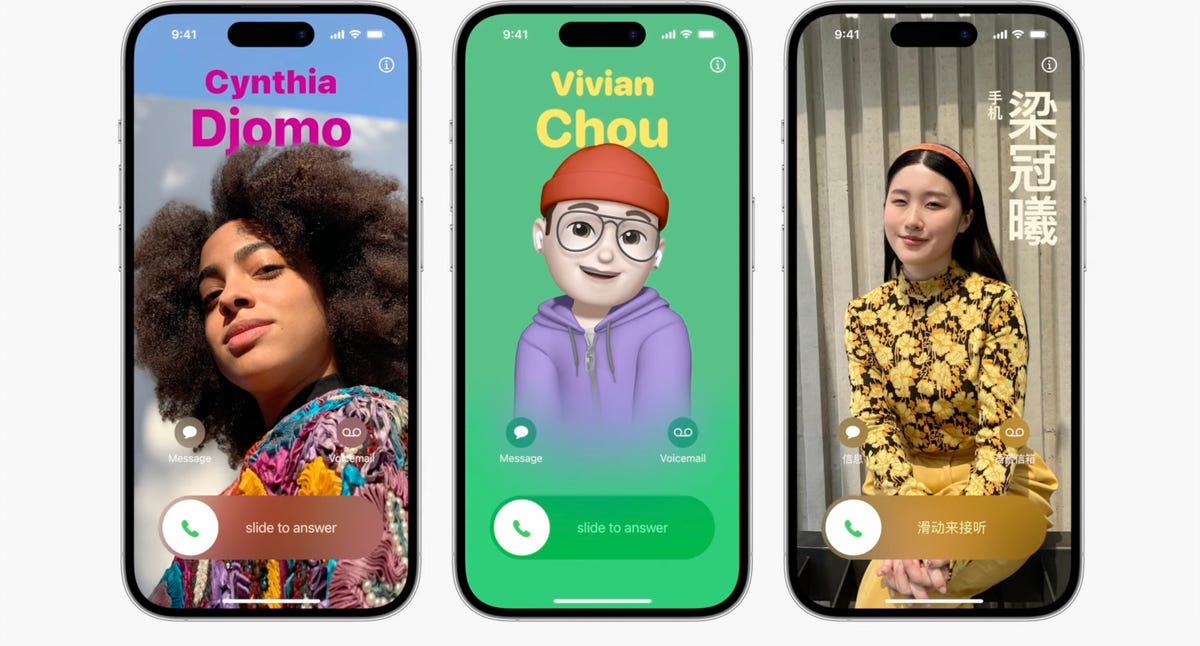
Contact Posters aim to make your contact cards more compelling.
Apple
Last year we got customizable lock screens in iOS 16. This year, iOS 17 has a similar change for your iPhone’s contact cards, to make them look more eye-catching. Contact Posters are beautiful treatments for contact photos and emoji paired with slick-looking fonts that show up when you get calls and for other services on your phone where you communicate and share.
You can customize your Contact Poster similar to how you personalize your lock screen. Pick a photo, font and color and that’s it.
AirDrop gets easier to use
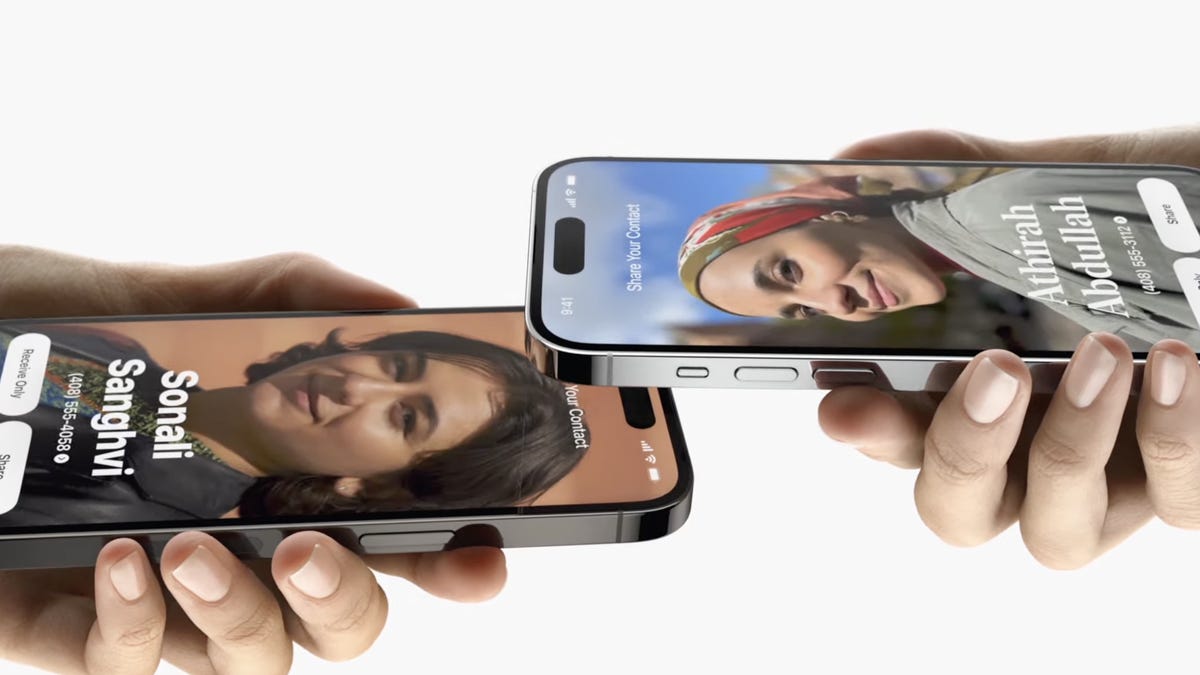
iOS 17 brings an overhaul to AirDrop. You just need to bring your iPhone close to someone else’s to share a Contact Poster, photos, videos or kick off a shared activity using Share Play. Of course, being Apple, there’s a word for sharing your Contact Poster with someone new: NameDrop. What’s nice, is that you can choose what contact info is shared. NameDrop works between iPhones or with an Apple Watch, too. It reminds me of “bumping” a contact in the early days of the iPhone.
Standby turns your iPhone into an Amazon Echo Show
iOS 17 adds an attractive screen that shows photos, widgets and info when your iPhone is charging.
Apple
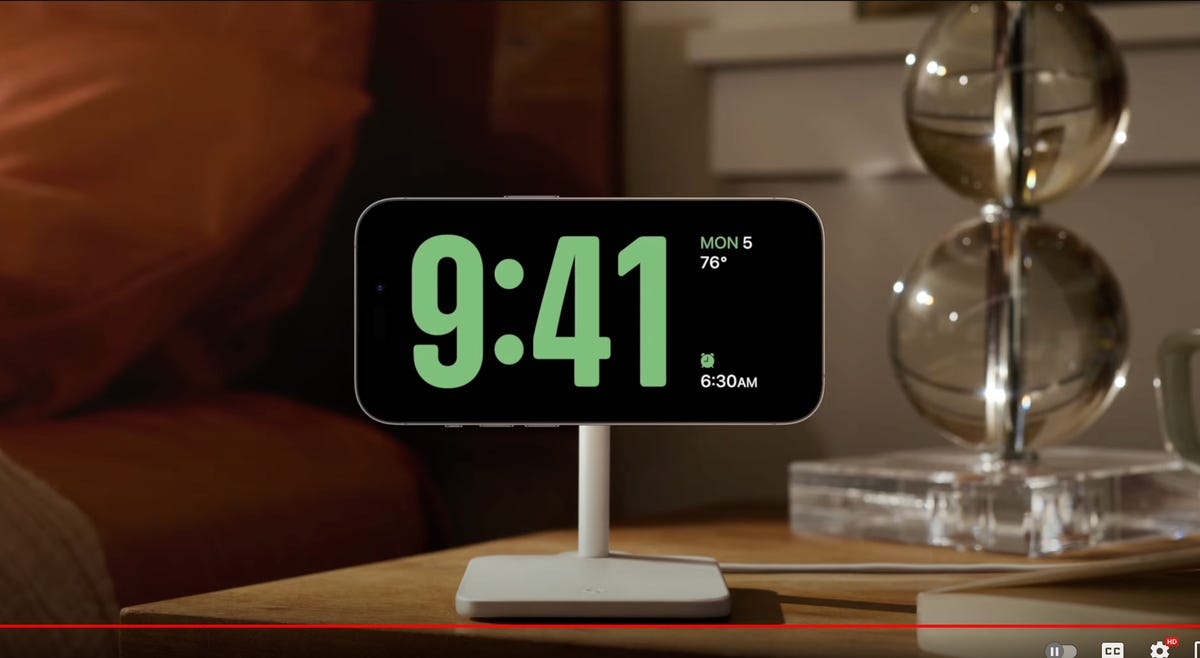
One of the biggest additions in iOS 17 is for when your iPhone isn’t in your hand. When your iPhone is on its side while MagSafe charging, you get a new full screen experience with glanceable information. The feature is called Standby and mimics what many smart home devices can do, such as the Amazon Echo Show.
The new screen shows the time, photos, widgets and Live Activities; nearly all of which can be personalized. It’s a bit of a cross between the iPhone 14 Pro’s always-on display and nightstand mode on the Apple Watch.
Watch this: WWDC 2023: Here Are All the Major iOS 17 Features
06:31
When you swipe to the side on the Standby screen, you can look at your favorite photos or moments. iOS 17 will also automatically shuffle images to find the one that take the best advantage of the screen.
Standby can also show glanceable widgets. For example, you can see the weather, your Apple Home smart controls or your favorite third-party widget. With support for live activities, you can also see the score of sporting events or the status of a food delivery.
One of the more curious features is that Standby can remember your preferred view “setup” for each place you charge via MagSafe.
The new Journal app
iOS 17 brings a new Apple app called Journal that creates personalized suggestions to inspire writing. These suggestions are curated from information on your iPhone, like photos, location, music and workouts.
Journal gives you the option to select a moment, like “morning visit, Ocean Beach,” and start writing. You can also schedule notifications to remind you to write and get new prompts. You can flag important moments so that you can reflect on them later.
Live Voicemail
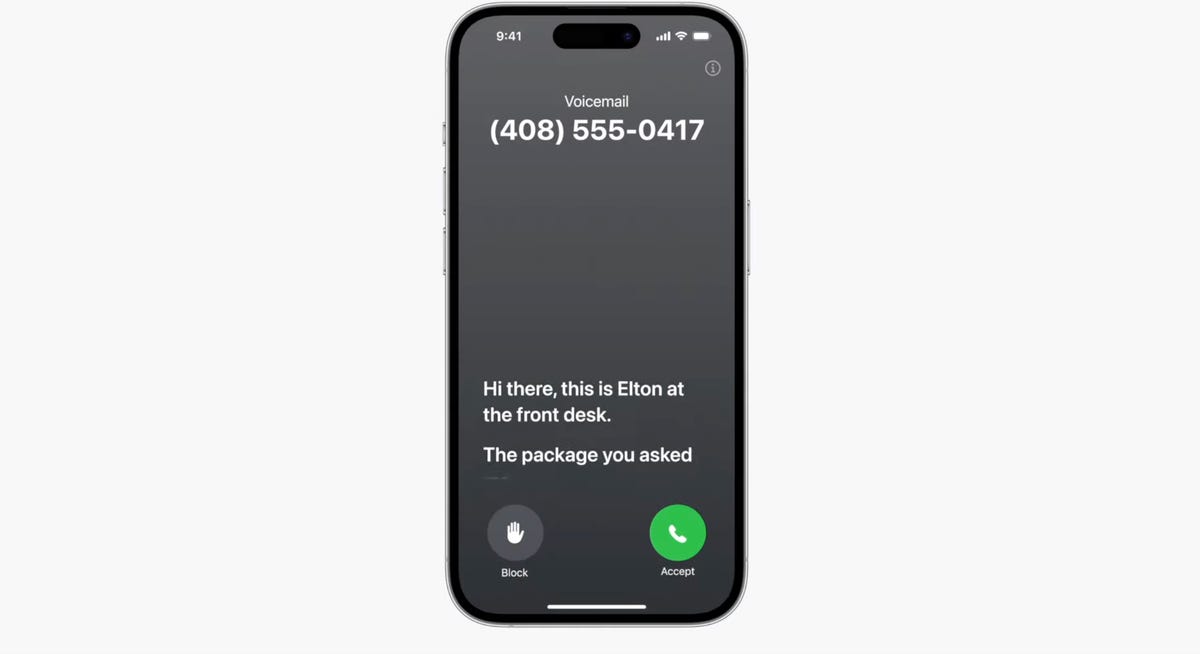
Live Voicemail lets you preview a transcription in real time as a voicemail is being recorded.
Apple
Another new talent iOS 17 has involves your voicemail. When someone calls you and leaves a message, you’ll see a live transcription in real time as they speak. The new service is called Live Voicemail and it kind of feels like the days of answering machines, when my dad would screen a call. For Live Voicemail, you’ll see the voicemail right on your screen so you can decide whether to step out and take the call. The feature is powered by your iPhone’s neural engine in order to preserve your privacy. Live Voicemail seems identical to Call Screen on Google Pixel phones which isn’t a bad thing.
FaceTime messages
iOS 17 will let you record a video message in FaceTime. It’s a heavily requested feature that will ensure you can document and share important moments, even if someone misses your call.
Messages Check In
iOS 17 comes with a new location-sharing tool called Check In.
Apple/GIF by Arielle Burton/CNET
Apple is expanding and simplifying its location sharing via Messages. The new feature, called Check In, is for letting a loved one know you made it to your destination safely. Whether you’re walking home after dark or going for an early morning run, you can start a Check In with a family member or friend and as soon as you arrive home, it will automatically let your friend know. But if something unexpected happens, it can recognize that you’re not near your destination and check in with you. If you don’t respond, Check In can automatically share your current location, the route you took, your iPhone’s battery level and cell service status; all of which is end-to-end encrypted.
Messages get a handful of fixes and additions
The Messages app will get transcriptions for audio messages in iOS 17.
Apple
The tried-and-true Messages app gets a handful of updates, including a visual overhaul of your iMessage apps which will no longer live above your keyboard and instead be accessible via a plus sign on the bottom left.
Searching through your Messages becomes a lot easier on iOS 17 with the addition of filters. When you start a search in the Messages app, you will be able to add terms to narrow the results.
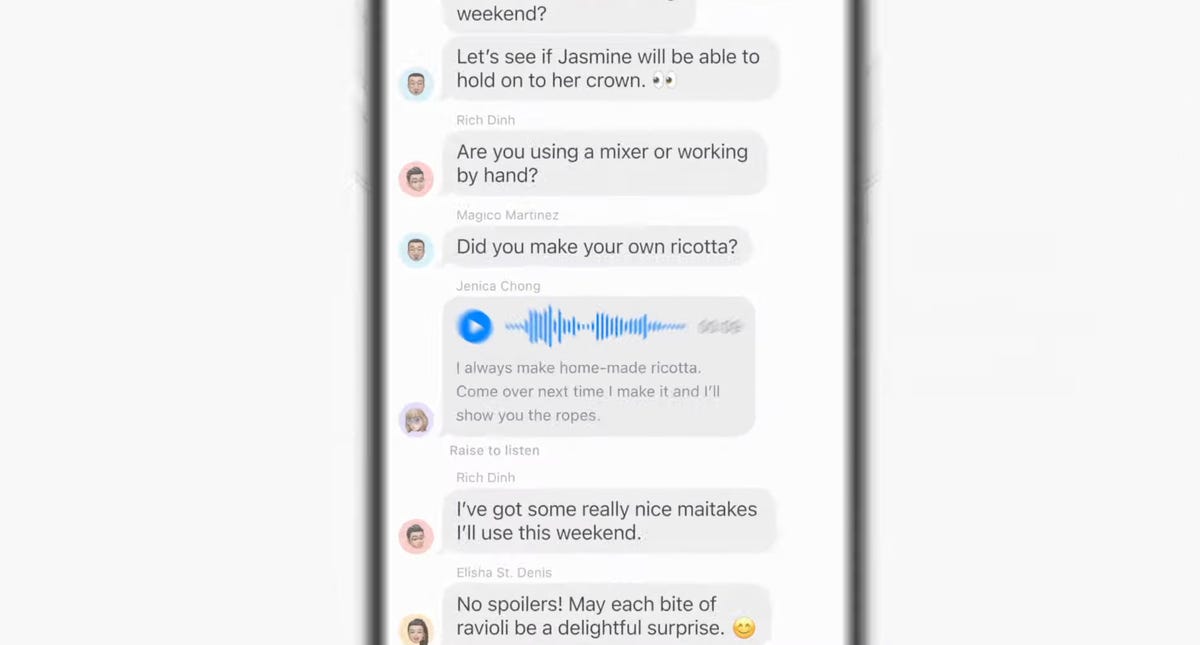
Another welcome addition is transcription for audio messages. If you’re someone who has friends or family members who send you audio messages, you’ll be able to read a transcription of the recording right in the Messages app.
There’s also a new “catch up arrow” in Messages. It sits in the top right of your conversation and lets you jump to the first message you haven’t read. This could be a killer feature for managing group chats. Apple also made inline replies faster. In iOS 17, you’ll be able to just swipe to reply on any message bubble.
Apple fixes ‘ducking’ autocorrect
Autocorrect will become more intelligent and can fix more grammatical mistakes. Reverting words back to what you typed is easier. And apparently, autocorrect will learn and let you use curse words. Duck, yeah!
Messages adds a bunch of Sticker features.
Apple
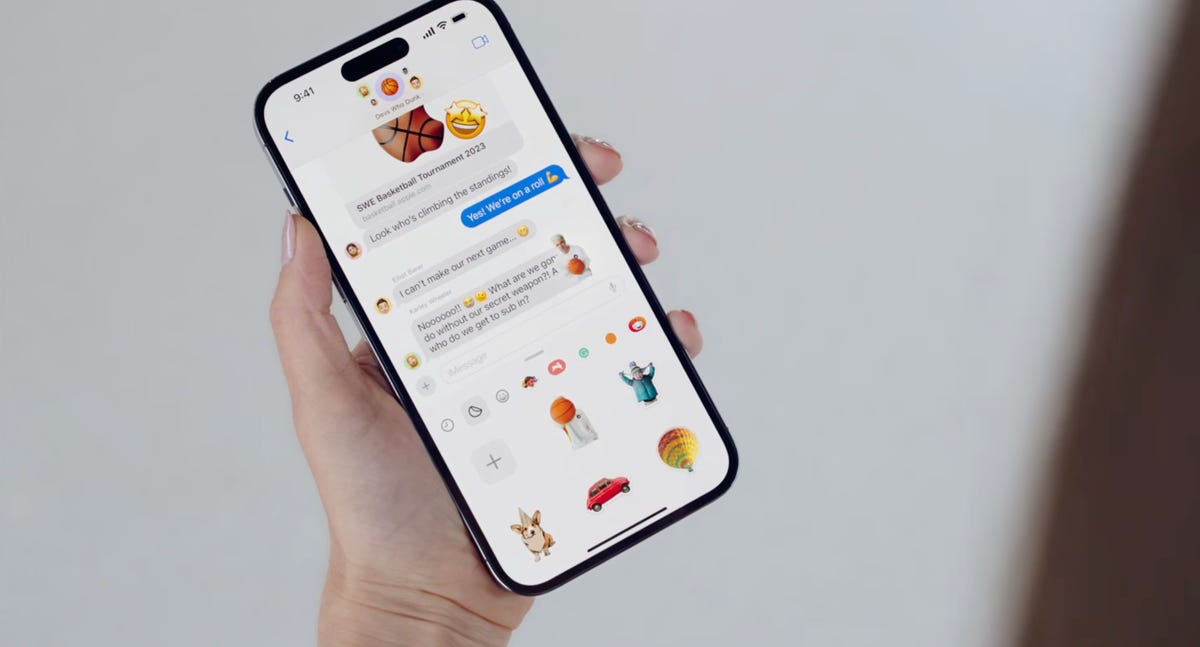
iMessage stickers get a new drawer to bring all the stickers you’ve used into one place. And now emoji are stickers. You can peel and stick an emoji sticker to a message bubble, rotate and resize it. Last year in iOS 16, Apple introduced the ability to lift a subject from the background of a photo as part of Visual Lookup. With iOS 17, you can turn a photo’s subject into a sticker in Messages.
The Stickers drawer also has a Live Stickers tab that lets you create a Sticker animation (aka a GIF) from a Live Photo. Stickers can be accessed system wide in things like Tapback, Markup and third-party apps; basically anywhere you can access emoji.
Watch this: Apple Reveals iOS 17
16:43
But wait, there are more iOS 17 features
As is typical with WWDC, there are a lot more additions and improvements to iOS 17 than Apple showed during the keynote. Some notable highlights include:
Triggering Siri by just saying, “Siri” instead of “Hey, Siri”
Download offline maps in the Maps app
New profiles for Safari and your passwords
Auto retrieval of one-time verification codes from the Mail app
Interactive widgets (which was featured in-depth during the iPadOS portion)
iOS 17 will be out in full this fall and work on the iPhone XS, XR and newer, including the 2020 iPhone SE.
Amazon and Grubhub have a treat for Prime members who jumped on an offer last summer to get one free year of Grubhub Plus, the food app’s membership program that comes with free deliveries. On Monday, the companies said they’re extending the perk, giving Prime members who signed up another 12 months of Grubhub Plus at no additional cost.
The two companies unveiled the perk for Prime members last July. Grubhub Plus, which costs $10 a month, lets you order takeout from participating restaurants without paying delivery fees, and offers other benefits like free food and special discounts. In order to qualify for free delivery, Grubhub Plus orders must be at least $12 before taxes, tips and other fees.
Prime members who didn’t sign up already can still take advantage of this extended deal. Amazon said Prime members who redeem the offer between now and July 5 will get two years of Grubhub Plus for free. Prime members who sign up on July 6 or later will get one year.
Amazon Prime costs $15 a month or $139 annually and comes with a slew of perks for members, including two-day shipping, streaming video, prescription discounts and more. There’s also the annual Prime Day shopping event for members, likely coming up in July.
How to get a year (or more) of free Grubhub Plus
If you’re a Prime member who’s already redeemed the Grubhub Plus perk, then you don’t need to take any new actions. Amazon said an additional 12 months will automatically be applied to your existing Grubhub Plus membership.
If you’re an active Prime member signing up for the first time, here’s how to get a free Grubhub Plus membership.
2. Hit “Activate Grubhub+ and save.” Sign into your Grubhub account or create an account.
3. Agree to terms and conditions to connect your Prime and Grubhub accounts and to share your Prime membership status with Grubhub.
5. Hit “Order now,” and you’ll be taken to the Grubhub delivery platform.
Once you hit the end of your free Grubhub Plus membership, the food app will automatically charge $10 a month to the payment method associated with your account. You can cancel your membership at any time.
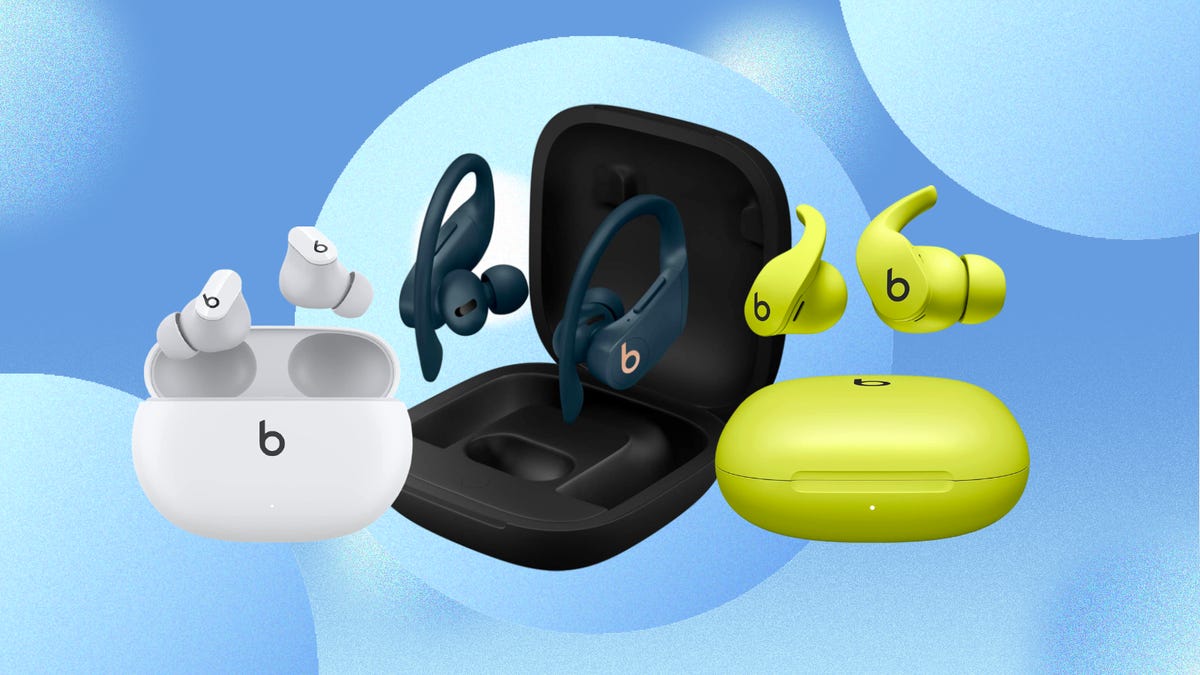
Looking for ‘buds with exceptional sound quality? Need earbuds for working out? Beats makes some of the best wireless earbuds out there. The company is owned by Apple, however, and that means Beats products have the same drawback as all Apple offerings: They’re expensive, and it can be hard to find discounts. But right now Amazon has slashed prices on a variety of Beats earbuds, with discounts of up to 43%. There’s no clear-cut expiration date on these deals, but discounts on ‘buds this popular rarely last for long. We’d recommend getting your order in sooner rather than later if you’re hoping to grab a pair at this price.
CNET reviewer David Carnoy compared the Beats Studio Buds to a stemless version of Apple’s popular AirPods, and they’re a great pick if you want a pair of earbuds for everyday use. They have active noise canceling and a transparency mode when you need to be aware of your surroundings, an IPX4 water-resistance rating and a battery life of up to 24 hours on a single charge. Right now, you can grab several colors on sale for $100, which is 33% off the usual price.
Or if you’re looking for some earbuds that are a little more advanced, you can grab a pair of Beats Fit Pros — our overall favorite pair of earbuds for working out in. They have the same IPX4 water- and sweat-resistance as the Studio Buds above, but also feature flexible wingtips that help them fit in your ears more securely so you can use them on runs or at the gym. They also support active noise canceling and spatial audio, and are equipped with the same H1 chip as the AirPods Pro for seamless connectivity with Apple devices. They list for $200, but right now you can a variety of colors are discounted to $160, including the recently-released yellow, blue and pink options.
And if you need earbuds that can handle even your most extreme adventures, you can save up to $100 on a pair of Powerbeats Pro, dropping the price down as low as $150. They’re one of our favorite pairs of earbuds with ear hooks, which will keep them in place even during intense activities like mountain biking or trail running where you’re getting jostled around quite a bit. They don’t have noise-canceling capabilities like the two pairs above, but they do boast spatial audio support, an auto play/pause feature that can detect when you remove an earbud and built-in voice-activated Siri assistance. They also have the same H1 chip as the Beats Fit Pros, and have a battery life of up to 24 hours with the charging case.
On the cheaper end, the Beats Flex earbuds are 43% off, down to their best price of the year at $40. These neckband-style earbuds pack in a ton of great AirPods-like features, plus some unique capabilities enabled by the neckband design like in-line controls and auto-pausing when the earbuds are removed. You’ll get up to 12 hours per charge with the Beats Flex, and the built-in USB-C port allows for fast charging that can get you 90 minutes of playback from just 10 minutes on the charger.
If you’ve ever wondered how well your coworker slept last night, now you can know for sure as long as you’re connected with them through Circles, a new feature Oura announced Thursday for its app.
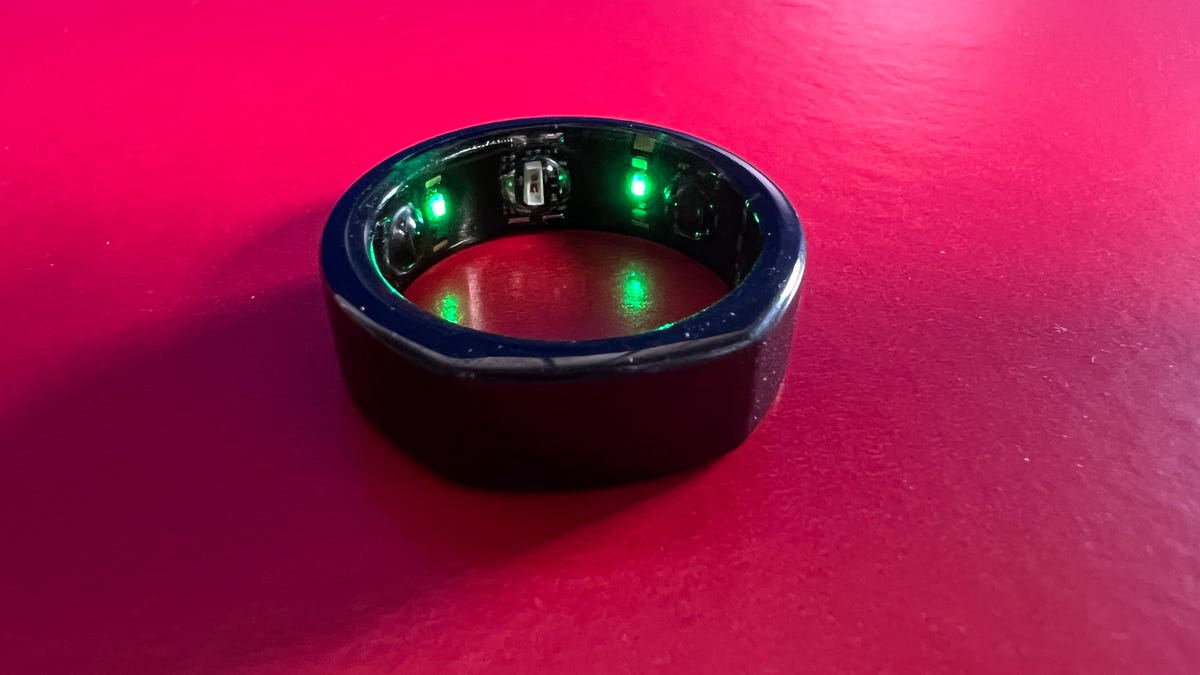
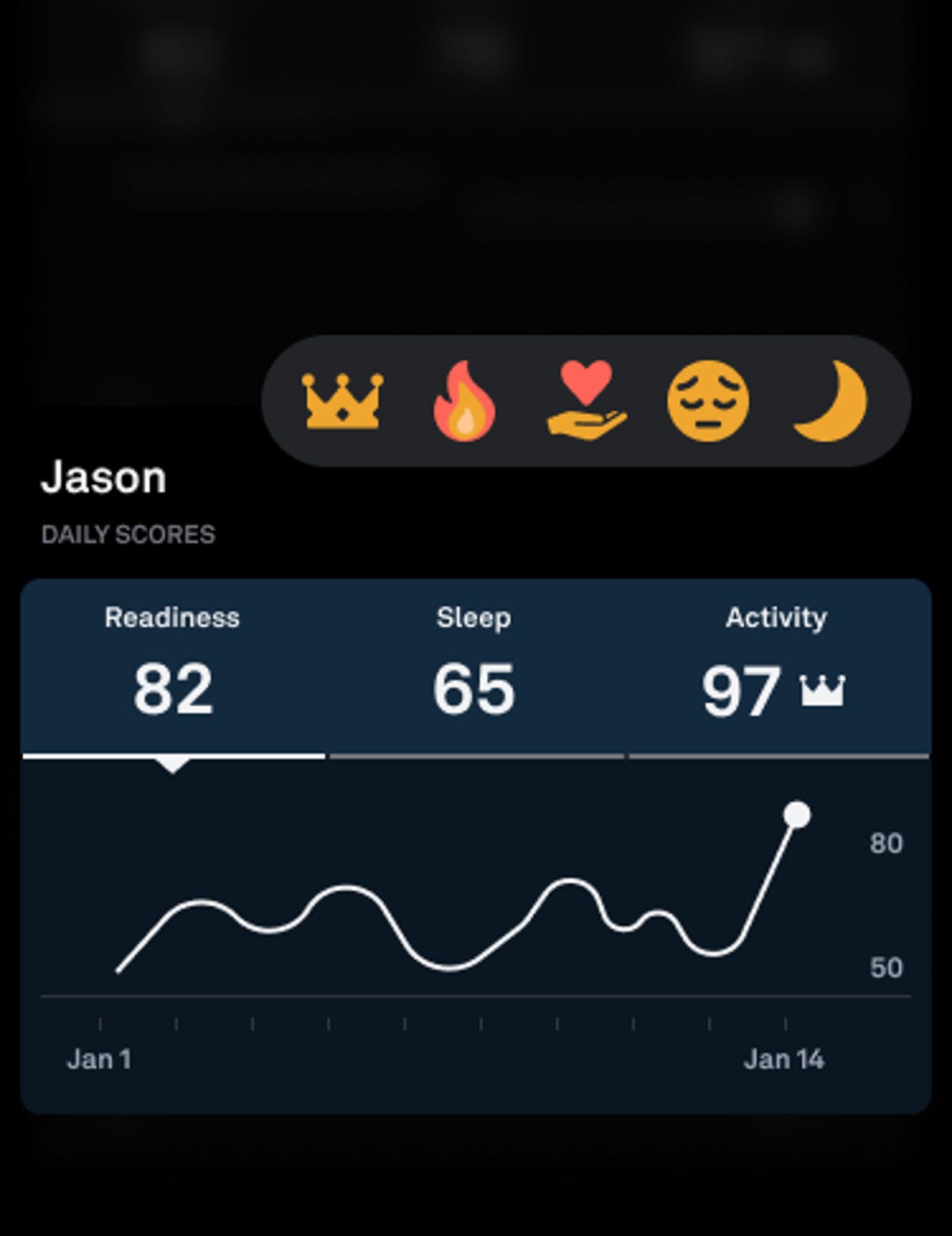
Oura, the health-tracking ring that collects data such as temperature, heart rate, blood oxygen readings, summarizes that information into Readiness, Sleep and Activity scores. With Circles, you’ll be able to share those scores with up to 10 groups of people or “Circles,” with a maximum of 20 people in each group.
You’ll be able to choose which kind of data or scores you share with each group, so one circle can get more of your wellness information than another. While only three scores are available to share through Circles now, Oura said it plans on expanding sharable information in the future.
To start a circle, open the Oura app, scroll down the main menu and select “Circles.” Then you can name a circle, decide what scores you want to share and also decide whether you want that data to be daily or weekly averages. To invite people into the circle (they have to be fellow Oura users), you’ll send them a one-time link.
Once you’ve started your circle, you can view their scores and “react” with emojis, if you choose. Everyone has to sync their rings to keep the scores visible.
What it looks like to react to your friend in Circles.
Oura
For people who enjoy collecting health data (and maybe boasting about a good health week), Oura’s Circles features is a good way to do that with other Oura wearers. According to a press release, though, the company is positioning Circles as another way to check in and connect with each other — an increasingly important public health goal amid a loneliness epidemic, which has impacts on sleep, mental health and physical illness.
“Our mission at Oura has always been to improve the lives of our members by taking a compassionate approach to health, and this new feature is just the next step in delivering a personalized experience that allows our members to connect with not only their bodies, but also their friends and family,” Oura CEO Tom Hale said in a statement.
Oura’s Circles announcements comes as the company is advancing its new sleep staging algorithm out of beta mode, which means everyone tracking sleep stages with Oura will get data from the improved algorithm. Shyamal Patel, the company’s head of science, calls the new algorithm a “massive improvements of accuracy” in sleep data. The new algorithm has 79% agreement with polysomnography sleep tests done in a clinic, Patel told CNET.
Compared to Oura’s older sleep-tracking algorithm, ring wearers might experience slight changes in the amount of time Oura tells you you’re spending in deep sleep versus light sleep versus REM sleep.
“Those numbers are likely to shift a little bit,” Patel said.
The iPhone 12 and subsequent iPhone models lack a headphone jack, so you’ll need to invest in an adapter to use a wired headset with any of Apple’s newer models. But you don’t need to bother with any of that if you opt for an entirely wireless option. The best earbuds for iPhone tend to be wireless, anyway, so if you haven’t already made the leap, now is a great time to pick up a pair of wireless earbuds.
Apple offers buds and headphones under both its own brand and its Beats brand (yes, Apple owns Beats), and we’ve included the AirPods 3, AirPods Pro 2 and Beats Fit Pro on this list, but there are plenty of non-Apple-branded Bluetooth headphones and earbuds that offer a great listening experience and work really well with iPhones, as well as other Apple devices and non-Apple devices, including Android smartphones and tablets.
Battery Life Rated up to 6 hoursNoise Canceling Yes (ANC)Multipoint NoHeadphone Type Wireless earbudsWater-Resistant Yes (IPX4 — splash-proof)
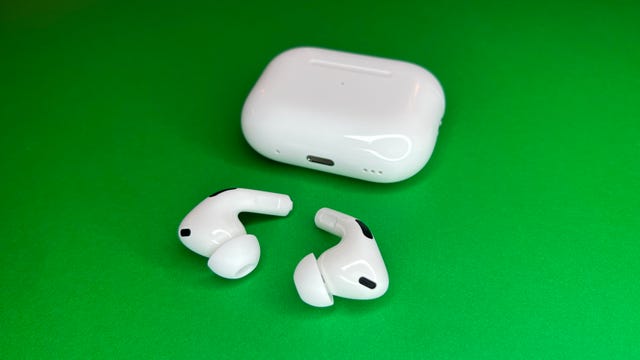
The new AirPods Pro (2nd generation) are powered by Apple’s new H2 chip, which delivers more processing power while being more energy efficient, according to Apple. The new chip, combined with new low-distortion drivers, allows for improved sound that offers better clarity and depth. The noise canceling is also improved — Apple says the new AirPods have “double” the noise canceling of the original AirPods Pro. Additionally, the new AirPods add an extra hour of battery life, up from five to six hours with noise canceling on. Plus, a speaker in the case that emits a sound that helps locate your buds via Find My should they decide to hide from you.
You’re receiving price alerts for Earfun Air Pro 3
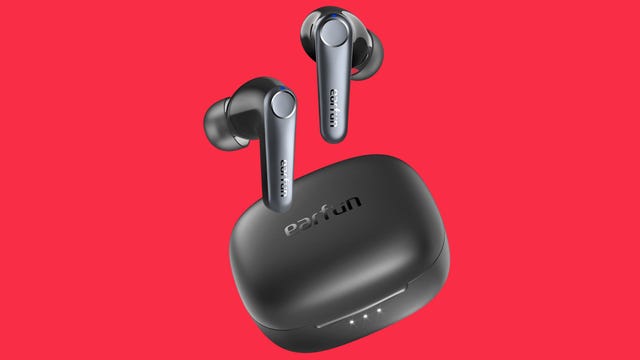
Earfun has put out a series of wireless earbuds over the last couple of years with one important commonality: They’re very good values, made more so by frequent discounts. The company’s new-for-2023 Earfun Air Pro 3 earbuds feature the latest Qualcomm QCC3071 system-on-a-chip with AptX Adaptive for Android and other devices that support the new LE Audio standard and LC3 audio codec, which is superior to the SBC codec (they also support AAC for Apple devices).
Lightweight and comfortable to wear — I got a good seal with the largest ear tip size — these aren’t a huge upgrade over the Earfun Air S, but they are better. They have slightly larger wool-composite drivers (11mm versus 10mm), slightly improved noise canceling and better battery life (up to seven hours with noise canceling on, according to Earfun).
In short, the Earfun Air 3 deliver strong performance for their modest price, with robust bass, good clarity and a relatively wide soundstage. They also pack in a lot of features, including a wireless charging case and “multidevice” connectivity. (I could pair them to two devices simultaneously but had to pause the music on one device and hit play on the other for the audio to switch.) They’re IPX5 splash-proof and also work well (though not exceptionally well) as a headset for making calls.
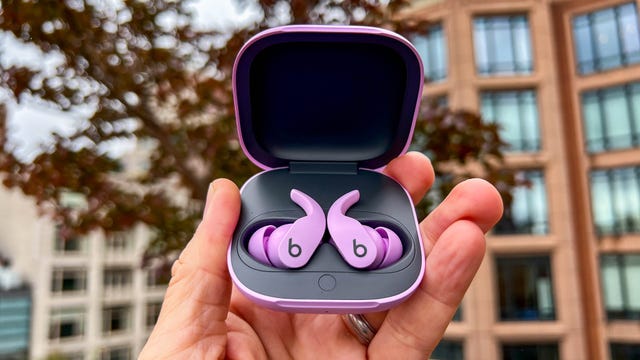
While the Beats Fit Pro (on sale for $160) technically aren’t AirPods, they’re built on the same tech platform as the AirPods Pro (yes, Apple owns Beats). Unlike Beats’ earlier and less expensive Studio Buds, the Beats Fit Pro include Apple’s H1 chip and have most of the AirPods Pro’s features, including active noise canceling, spatial audio and Adaptive EQ. I’d venture to call them the sports AirPods you’ve always wanted. And for some people, they might just be better than the AirPods Pro.
Battery Life Rated up to 10 hoursNoise Canceling Yes (Adaptive)Multipoint YesHeadphone Type Wireless earbudsWater-Resistant Yes (IPX5 — protection against low-pressure water streams)
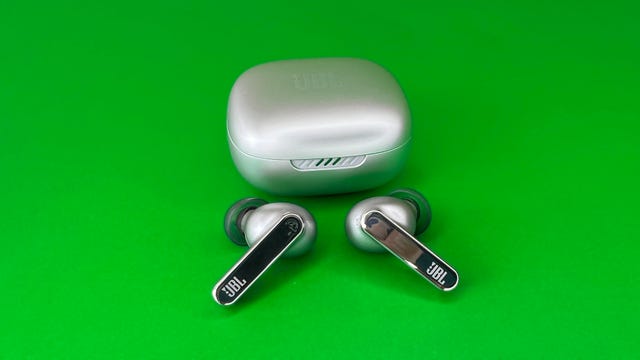
Over the years, JBL has put out some decent true-wireless earbuds, but nothing that really got me too excited. That’s finally changed with the arrival of the Samsung-owned brand’s new Live Pro 2 and Live Free 2 buds. Both sets of buds — the Live Pro 2 have stems while the Live Free 2 have a pill-shaped design — offer a comfortable fit along with strong noise canceling, very good sound quality and voice-calling performance, plus a robust set of features, including multipoint Bluetooth pairing, an IPX5 splash-proof rating and wireless charging.
The Live Pro 2 and Live Free 2 are equipped with the same 11mm drivers, six microphones, oval tubes and oval silicon tips. Aside from the design, the biggest difference between the two buds is battery life; the stemless Live Free 2 is rated for up to seven hours, while the Live Pro 2 is rated for 10 hours. The Live Pro 2 is available in four color options.
Battery Life Rated up to 9 hoursNoise Canceling Yes (ANC)Multipoint NoHeadphone Type Wireless EarbudsWater-Resistant Yes (IPX4 — splash-proof)
Unlike the “open” LinkBuds, the LinkBuds S are traditional noise-isolating earbuds with tips you jam in your ears. They’re more compact and lighter than Sony’s flagship WF-1000XM4 and also feature Sony’s V1 processor. While their sound and noise canceling don’t quite measure up to the XM4’s, they’re close and cost less. They’re the Sony buds for people who can deal with larger buds like the XM4 but want 80 to 85% of those buds’ features and performance for $80 less.
Battery Life Rated up to 12 hoursNoise Canceling NoMultipoint NoHeadphone Type Wireless earbudsWater-Resistant No IP rating
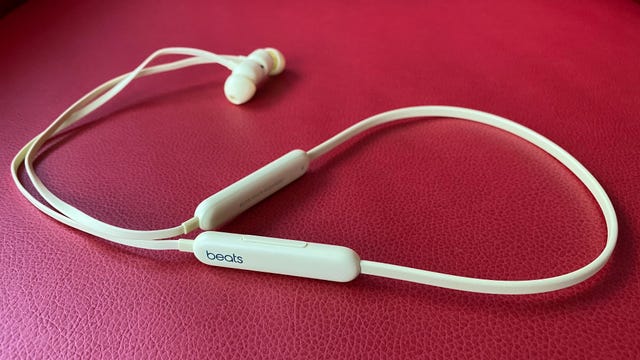
I didn’t think I’d ever see a version 2.0 of Beats’ once-popular BeatsX neckband-style wireless earphones, but it’s arrived with a new name — the Beats Flex — and a much-cheaper $50 price tag, which is half of what its predecessor had been selling for.
The Flex instantly becomes an affordable, Apple-friendly wireless alternative to the AirPods, which start around $100 for the standard version with a wired charging case (but will be selling for as low as $99 this holiday season). The good news is they sound better than both the original BeatsX and standard AirPods. They also work well for making calls and have better battery life than the original. The bad news? The design is passe in a world now dominated by true wireless earbuds.
Battery Life Rated up to 32 hoursNoise Canceling Yes (ANC)Multipoint YesHeadphone Type Over-ear wireless headphonesWater-Resistant No IP rating
When you have a product that a lot of people love, change can be risky. Such is the case for Sony’s WH-1000XM5, the fifth generation of the 1000X series headphones, which were first released in 2016 as the MDR-1000X Wireless and have become increasingly popular as they’ve improved with each generation. Over the years, Sony has made some tweaks to the design, but nothing as dramatic as what it’s done with the WH-1000XM5. Other than the higher $349 price tag most of those changes are good, and Sony’s made some dramatic improvements with voice-calling performance as well as even better noise canceling and more refined sound.
Battery Life Rated up to 20 hoursNoise Canceling Yes (ANC)Multipoint NoHeadphone Type Over-ear wireless headphonesWater-Resistant No IP rating
Yes, they’re expensive, but the AirPods Max deliver richer, more detailed sound than lower-priced competitors from Bose and Sony. They also feature arguably the best noise canceling on the market along with premium build quality and Apple’s virtual surround spatial audio feature for video watching. While they’re heavy, they manage to be surprisingly comfortable, though I did have to adjust the mesh canopy headband to sit a little more forward on my head to get a comfortable secure fit when I was out walking with them. They should fit most heads well, but there will be exceptions.
Battery Life Rated up to 25 hoursMultipoint YesHeadphone Type Over-ear wireless headphonesWater-Resistant No IP rating
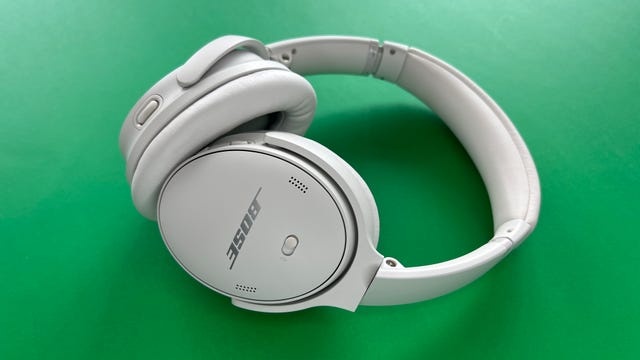
The QuietComfort 45 has virtually the same design as its predecessor, the QuietComfort QC35 II, which many people considered one of the most comfortable over-ear headphones — if not the most comfortable. It has the same drivers, according to Bose, and the buttons are in the same place. However, there are small but notable changes. First off, these thankfully have USB-C instead of Micro-USB.
Secondly, the microphone configuration is different. Not only have the mics been shifted on the headphones, but there’s now an extra external microphone for voice pick-up, which means the QC45 has a total of six microphones, four of which are beamforming and used for voice. By contrast, the QC35 II has a total of four, two of which are used for voice. (The Bose Noise Canceling Headphones 700 also have six microphones total.)
These headphones are excellent for making calls. They’re similar to the Bose Headphones 700 in that regard. They also include top-notch noise canceling and multipoint Bluetooth pairing, so you can connect them with a PC and your phone simultaneously. Read our Bose QuietComfort 45 review.
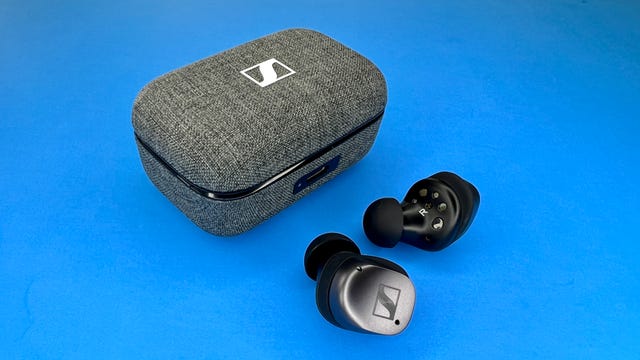
You’re receiving price alerts for Sennheiser Momentum True Wireless 3
Featuring excellent sound, improved noise canceling and voice-calling performance as well a smaller, more refined design that includes stabilizing fins (so the earbuds stay in your ears more securely), the Sennheiser Momentum True Wireless 3 were among the best new true-wireless earbuds last year. They’re also one of the best true-wireless earbuds overall, giving the Sony WF-1000XM4 a run for the money.
Battery Life Rated up to 6 hoursNoise Canceling NoMultipoint NoHeadphone Type Wireless earbudsWater-Resistant Yes (IPX4 — splash-proof)
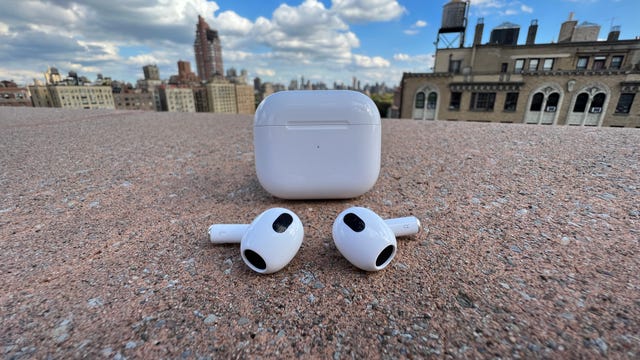
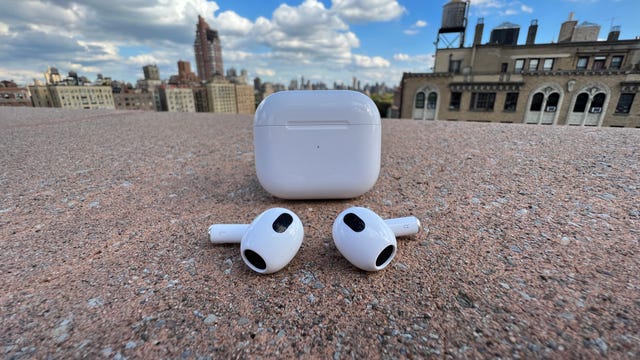
Take one look at the new design of the third-gen AirPods ($179), and the first thing you’ll probably think is: “Those look like the AirPods Pro without ear tips.” You wouldn’t be wrong. While they’re more fraternal than identical twins, the AirPods 3 are shaped like the AirPods Pro, with the same shorter stems and same pinch controls as those of the Pro. Aside from the design change, which should fit most ears better than the AirPods 2nd Generation (though not very small ears), the biggest change is to the sound quality: It’s much improved. Also, battery life is better, and the AirPods 3 are officially water-resistant.