Category: Technologies

  • Samsung Galaxy Tab S8 Plus Review: Android Tablet Excellence on the Go

    Samsung Galaxy Tab S8 Plus Review: Android Tablet Excellence on the Go

    The Galaxy Tab S8 Plus is the overlooked middle child of Samsung’s latest tablet line but it deserves your attention. Its pricier sibling, the Galaxy Tab S8 Ultra, overshadowed the Plus when they were announced in February, mainly because of its huge display. But, while it’s tempting to succumb to FOMO and get the highest-end device just to have the best of the best, the extra cost doesn’t seem worth it. Instead, consider the more travel-friendly Plus.

    The Ultra’s display is hard to ignore: It’s a 14.6-inch Super AMOLED screen with a 2,960×1,848-pixel resolution at 240 pixels per inch and a 120Hz refresh rate. By comparison, the largest iPad Pro at the moment is 12.9 inches with a 2,732×2,048-pixel resolution at 264ppi. The Tab S8 Plus has a 12.4-inch, 2,800×1,752-pixel Super AMOLED display and a 120Hz refresh rate. It’s the smallest of the three, but it’s a great display to build a tablet around (or behind, technically).

    Both the Ultra and Plus (and the regular Tab S8 for that matter) run on Qualcomm’s Snapdragon 8 Gen 1 system-on-chip, and the base models include 8GB of memory and 128GB of internal storage (a microSD slot supports cards up to 1TB as well). The Galaxy Tab S8 Ultra comes in graphite and starts at $1,100 ( 999, AU$1,799) while the Tab S8 Plus is available in graphite, silver and pink gold, starting at $900 ( 849, AU$1,499).

    Samsung Galaxy Tab S8 Plus

    The additional $200 for the Ultra is justified by the larger display, the larger battery that powers it and a second 12-megapixel front-facing wide-anglecamera (as well as an unattractive camera notch to accommodate it). It can be configured with up to 16GB RAM and 512GB of storage — double what’s available for the S8 Plus — but that’s really where the differences end.

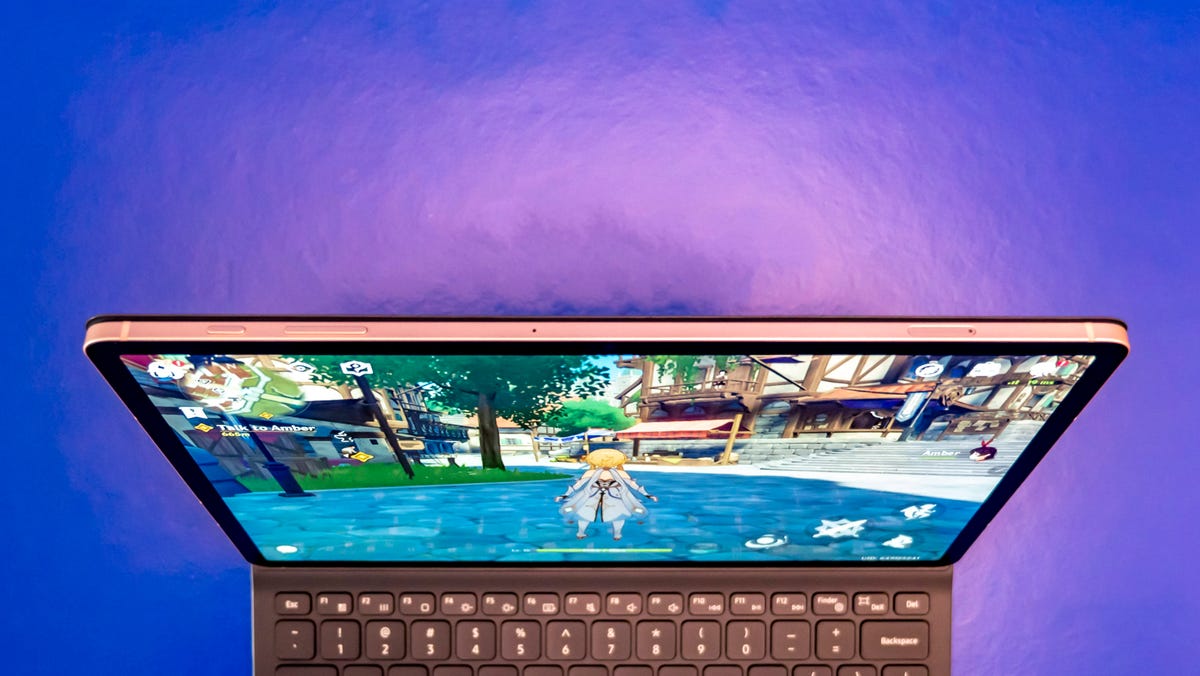
    Generally speaking, widescreen tablets larger than Tab S8 Plus are too big to comfortably use handheld for long. At nearly 15 inches and 1.6 pounds (726 grams), the Ultra is best used flat on a desk, in a lap or supported by a stand. The 12.4-inch Plus is just small and light enough (at 1.3 pounds, 576 grams) to use in your hands for gaming, reading, streaming video or web browsing. It’ll also fit better on a small desk for jotting down notes in class or in a meeting. But, it’s also big enough to get some office or school work done.

    S Pen included, but little else

    Samsung, Apple, Microsoft and others regularly position large tablets as productivity machines when paired with a detachable keyboard. The Tab S8 Plus is certainly marketed as an option for someone looking for a device to handle both work and play, but you won’t find that crucial keyboard in the package.

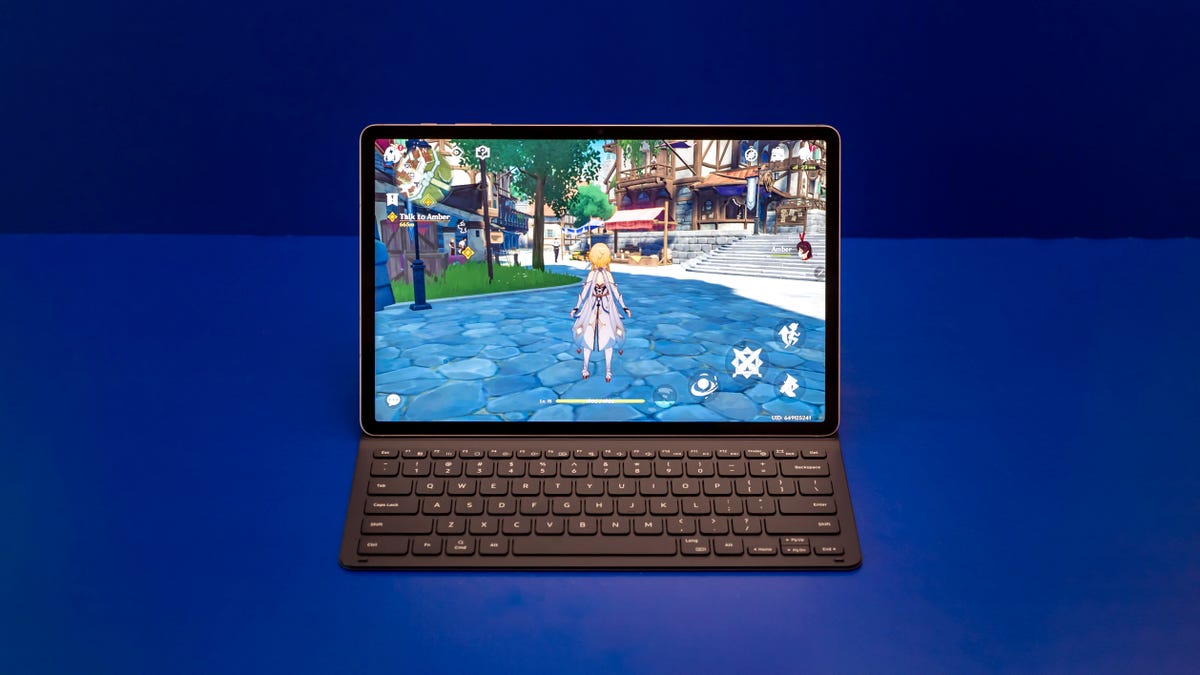
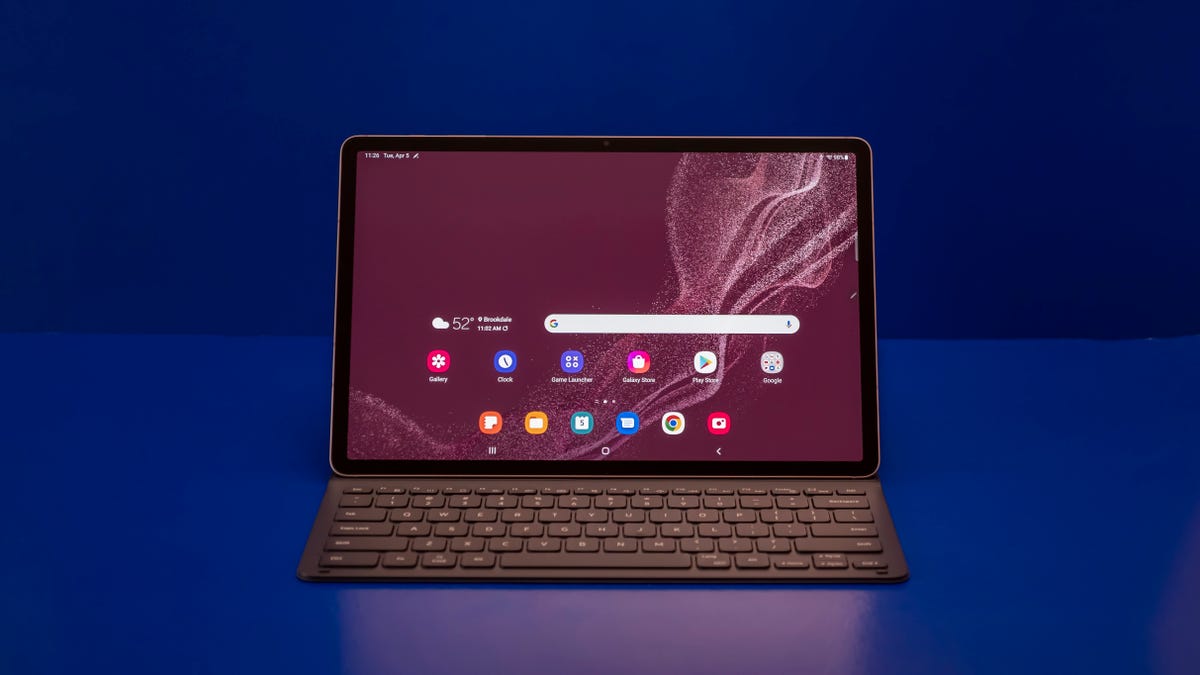
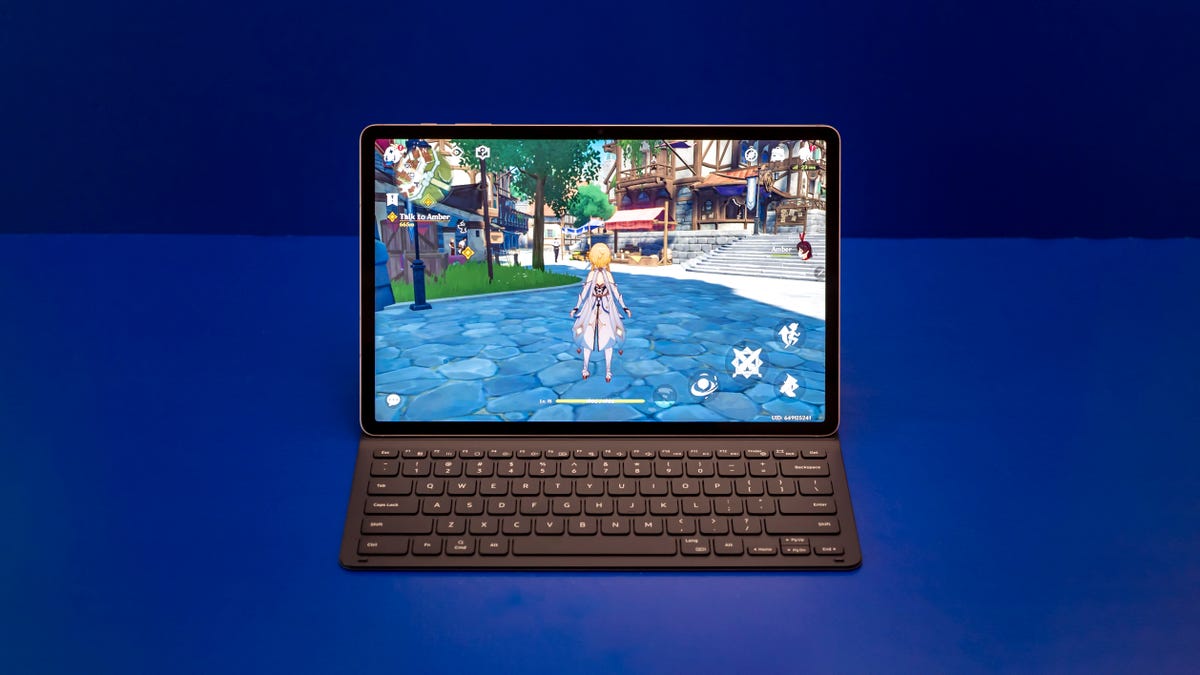
    Samsung sent me one of its keyboard covers to test with the Tab S8 Plus. It’s comfortable, and I typed this entire review on it. However, as the least expensive Book Cover with a keyboard, the keyboard isn’t backlit, there’s no trackpad, the case only has one screen position, and the keyboard can’t be separated from the back cover to be used as just a stand — and it’s still $110. The two-piece keyboard case with a trackpad is about $150.

    Samsung Galaxy Tab S8 Plus

    Not including a keyboard would be less of an issue if, again, Samsung didn’t spend so much time touting this as a tablet for productivity. My suggestion: Look for a bundle or a promotion that includes a keyboard to take full advantage of the Tab S8 Plus.

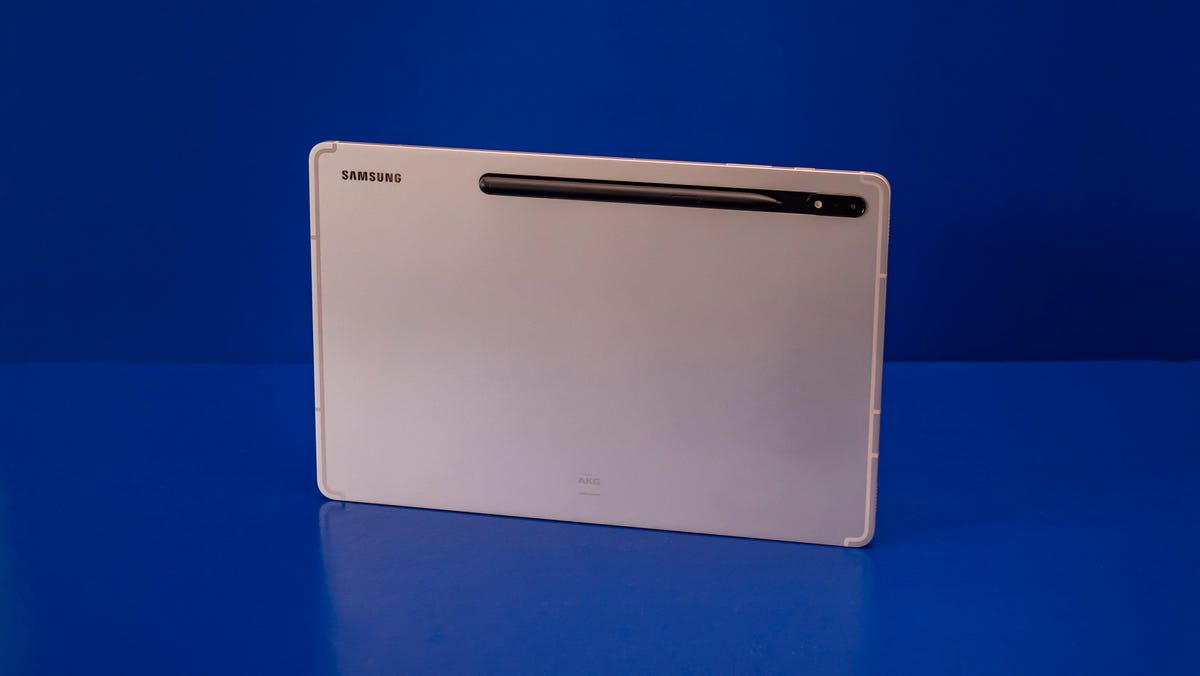
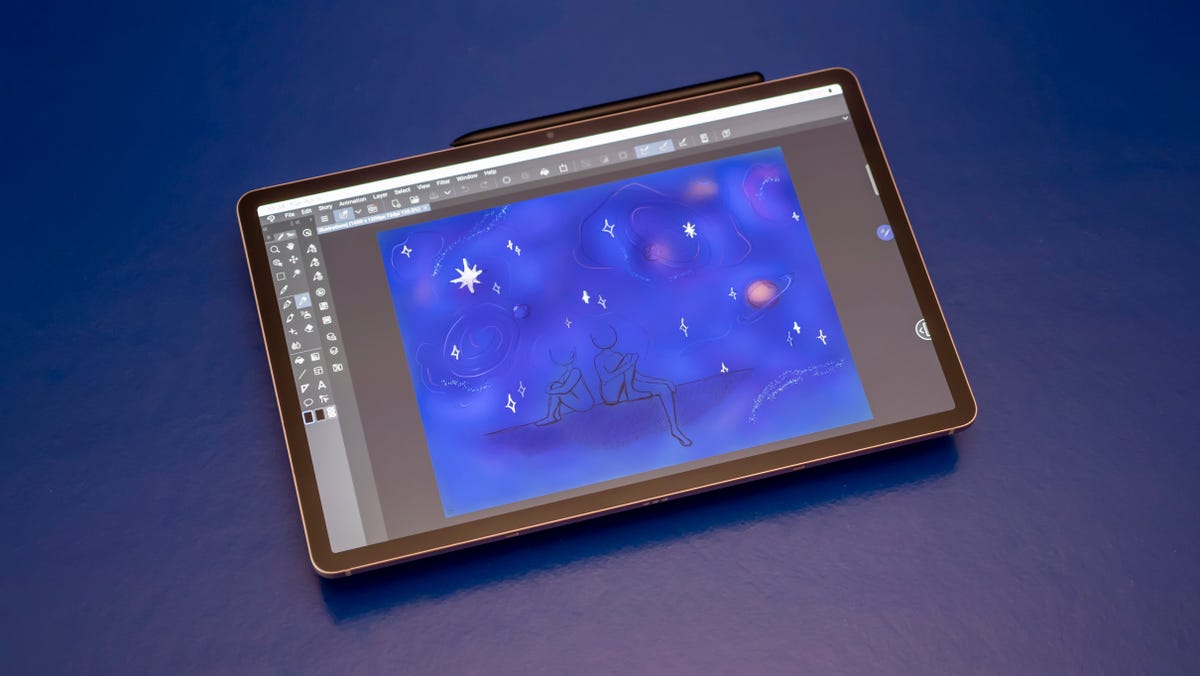
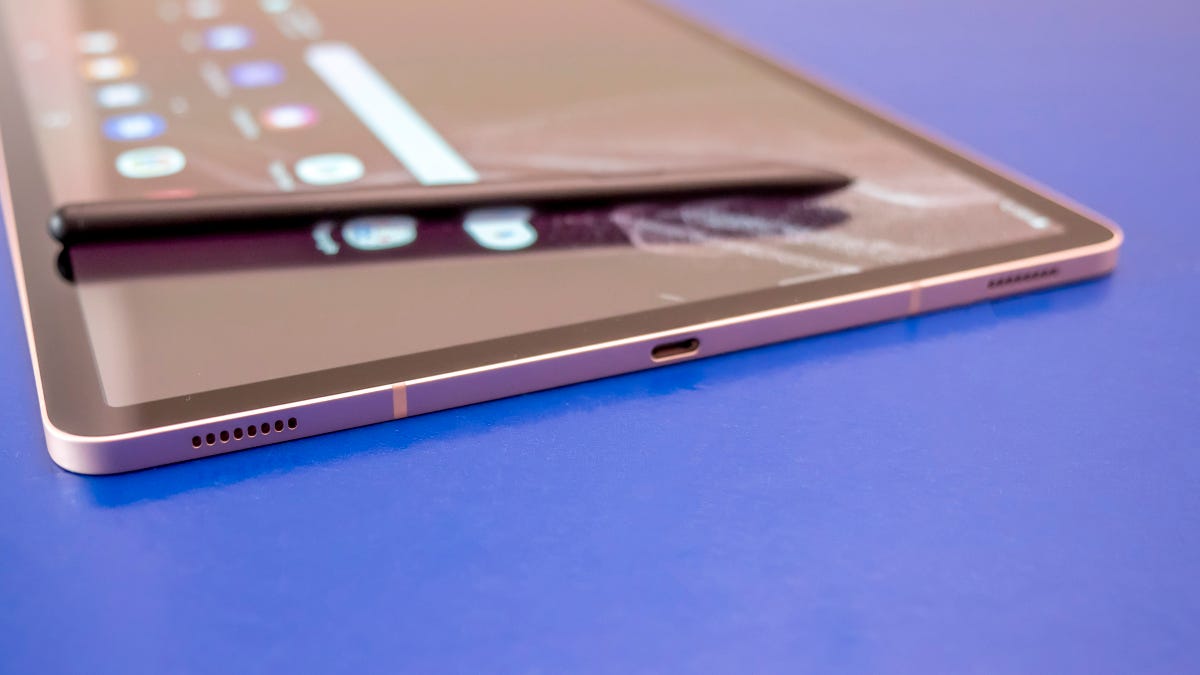
    To Samsung’s credit, an S Pen is included for drawing and writing, and it works wonderfully. It conveniently charges when it’s magnetically attached to the back but it can also snap securely to the top edge. The soft tip creates just enough drag on the screen that makes it equally comfortable for writing and drawing with little discernible latency. I wouldn’t call it pen-on-paper but I did feel like I had more control when shading a drawing for example.

    Samsung Galaxy Tab S8 Plus

    Along with the S Pen, Samsung includes a USB-C cable for data and charging. There’s no charger in the box, though, and if you want to use its fastest fast-charging capabilities, you’ll need a 45-watt charger. That gets you from zero to full in about an hour and a half. Its large battery lasted 10 hours, 24 minutes on our video streaming test with display brightness and audio at 50%. The Tab S8’s battery can also be used to charge up other devices.

    (Almost) a laptop replacement

    Samsung’s DeX interface does give the Tab S8 Plus more multitasking flexibility than plain Android OS. Like Windows, MacOS and Chrome OS, DeX allows you to have multiple apps up on the screen in windows. Not all apps resize well, however, and moving windows around and working in them can be laggy at times.

    Samsung Galaxy Tab S8 Plus

    I was able to write in the Word app side-by-side with Chrome while a YouTube video played in the corner or while chatting over Zoom. Would the experience be better on a $900 Windows or Chrome two-in-one? Yes. And as more Android app support comes to both of those platforms, the need for devices like the Tab S8 Plus gets smaller. That said, Android apps are still going to perform better on this tablet. Also, with DeX, you can connect to an external display through the tablet’s USB-C port and push the Tab S8 Plus’ desktop experience to a larger display.

    Samsung punched up the camera performance on the Tab S8s, too. The Plus has a 12-megapixel ultrawide-angle front-facing camera with intelligent autoframing software that’s similar to Apple’s Center Stage. The autoframing isn’t as quick to respond as Center Stage, but it works and the camera is on the correct side of the tablet. One more handy extra is that you can record both your camera and screen simultaneously. So you can, for instance, present a slide deck while you appear in the corner of the screen to explain the presentation.

    Samsung Galaxy Tab S8 Plus

    Extra value for Galaxy fans

    Samsung has pushed to ensure its Galaxy devices work together in the past couple of years, and that continues with these tablets. For example, the Tab S8 Plus can instantly sync content between your Galaxy phone and tablet, and Galaxy Buds can automatically switch between the two as well without needing to go through a pairing process. And now Samsung Galaxy Watch users will be able to sync Samsung Health stats with the Tab S8 to view them on a larger display.

    However, the best feature is the option to turn the Tab S8 Plus into a second wireless screen for your Windows laptop. And not just a Samsung Galaxy Book but any Windows 11 laptop will work. Press the Windows key plus K and tap on Second Screen in the tablet’s settings panel and the connection happens almost instantaneously. Considering a portable external OLED display can cost hundreds of dollars, having the Tab S8 Plus do it along with everything else really makes the price easier to swallow.

    Samsung Galaxy Tab S8 Plus

    When Samsung announced the Galaxy Tab S8 lineup, it said a lot of people turned to their tablets in the past two years for work, school, gaming and video. And apparently, those people were yearning for larger screens: Sales of large-screen tablets grew 24%, Samsung said, based on analysis from NPD Group. But, the Ultra might be a step too far for most people and, by comparison, the Galaxy Tab S8 Plus is a better size that’s just right for work and play.

    GeekBench 5 Multicore

    iPad Air (M1, 2022) 7,232iPad Pro 11 (M1, 2021) 7,261iPad (A13 Bionic, 2021) 3,358Samsung Galaxy Tab S8 Plus (Qualcomm SM8450, 2022) 3,403Samsung Galaxy Tab S7 FE 1,876
    Note: (longer bars equal better performance)

    GeekBench 5 Singlecore

    iPad Air (M1, 2022) 1,699iPad Pro 11 (M1, 2021) 1,689iPad (A13 Bionic, 2021) 1,332Samsung Galaxy Tab S8+ (Qualcomm SM8450, 2022) 1,185Samsung Galaxy Tab S7 FE 654
    Note: (longer bars equal better performance)

    3DMark Wildlife Extreme Unlimited

    iPad Air (M1, 2022) 4,038iPad Pro 11 (M1, 2021) 4,760iPad (A13 Bionic, 2021) 1,866Samsung Galaxy Tab S8+ (Qualcomm SM8450, 2022) 1,903Samsung Galaxy Tab S7 FE 1,108
    Note: (longer bars equal better performance)

    Looking for more Samsung discounts? CNET has the current best Samsung coupons and promo code offers, updated and verified daily.

  • How Passkeys Will Usher In a Safer, Passwordless Future

    How Passkeys Will Usher In a Safer, Passwordless Future

    The question isn’t if your passwords will get stolen, but when.

    Over 24 billion usernames and passwords were available on the dark web last year, a 65% increase since 2020, according to research from Digital Shadows, a digital risk protection company. Using strategies like brute force attacks and keylogger malware, hackers are able to harvest private login information at scale, often without users even realizing it.

    Password managers offer a way to mitigate these risks in that they allow users to create a separate password for each login. But the passwords themselves can still leave you vulnerable to bad actors and scams. Phishing has become increasingly sophisticated, with hackers creating fake password manager login pages that look exactly like the real thing. Reported phishing attacks are up 250% since 2019, according to a recent FBI internet crime report.

    As such, the cybersecurity industry is working to adopt solutions that would remove the need for passwords altogether. The latest technology uses what is known as a passkey, and leading password manager providers like Dashlane offer in-app passkey functionality to make your digital life safer and more secure. Dashlane is on CNET’s shortlist of the best password managers.

    Both Apple iOS and Google Android will offer third-party passkey integration in their next software updates later this year. Here’s what to know about passkeys, along with how to start incorporating them into your digital life.

    summer-lifestyle-affiliate-refresh-b2b-1-2000x1333

    What are passkeys, and how do they work?

    A passkey is a pair of cryptographic keys that are produced by an authenticator. Examples of an authenticator include a smartphone or your preferred password manager software. For an authenticator to be legitimate, it requires a form of user verification, such as a master password or a biometric sensor. Examples of biometric verification include face and fingerprint scanning technologies.

    One cryptographic key is public, while the other is private. When you log in with a passkey, your authenticator will generate a public key for that server. The server will also send a challenge to your authenticator’s private key, which your authenticator will solve and send back to the server.

    Think of this as the server asking your private key to do a math problem that only your private key could solve. Your private key solves the problem and marks it with a signature. Then, the signature is corroborated by your public key to prove the login really came from you.

    Still with us? Here’s what matters: The website you signed into never needs to know your private key to confirm the login attempt came from you. This gives passkey technology a leg up on passwords, which lose their inherent security when shared or stolen.

    Additionally, since the two-factor authentication requirement is satisfied entirely within the passkey experience, you won’t need to worry about one-time passcodes or six-digit SMS codes when using them.

    Passkeys are the future, and they’re the result of over ten years of effort from cyber industry leaders and organizations like the Fast Identity Online (FIDO) Alliance.

    Why use a password manager for your passkeys?

    Although some operating systems like iOS and Android have begun implementing passkey technology, it’s important to remember that these passkeys will only work in their respective ecosystems.

    If you use different operating systems—for example, Windows on your work computer and macOS on your personal tech—the better option might be to use your password manager as your passkey provider instead.

    Leading password manager technologies like Dashlane allow you to take your passkey records with you from system to system without having to re-authenticate all your logins. By taking the time to learn about and implement passkey technology, you’ll ensure your most valuable online assets remain safe and secure in an ever-changing digital world.

  • Denon Preps Two New 8K Receivers Under $700

    Denon Preps Two New 8K Receivers Under $700

    Denon has unveiled two new AV receivers for smaller rooms which offer networked audio and support for 8K video.

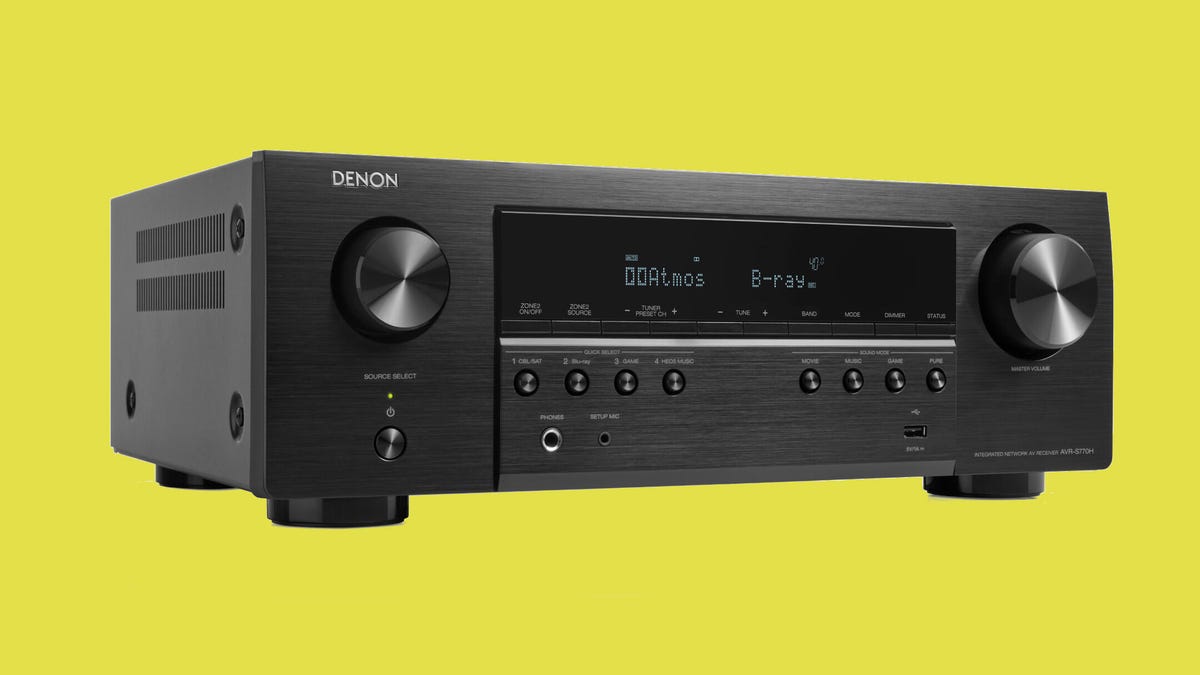
    The Denon AVR-S770H is a 7.2-channel receiver with Dolby Atmos and DTS:X support, while the AVR-S670H includes 5.2 channels and Dolby TrueHD support.

    Both receivers offer 75W per channel (8 ohm, stereo), and include six HDMI ports — three of which have 8K HDMI video capability and the gaming friendly 4K/120Hz. They also include the company’s own HEOS multi-room audio and Audyssey MultEQ calibration.

    The new Denon models follow up on the AVR-S970H which was released in late 2022. Denon has been one of the most consistent AV manufacturers with a new model almost every year, while competitors like Sony and Onkyo slowed down or even stopped during the pandemic.

    The Denon AVR-S770H ($649) AVR-S670H ($549) are available for pre-order and will go on sale in the coming weeks.

  • Use Google’s New AirDrop Clone to Share Files Between Android and Windows

    Use Google’s New AirDrop Clone to Share Files Between Android and Windows

    It’s never been easier to share files, especially on Android and Windows.

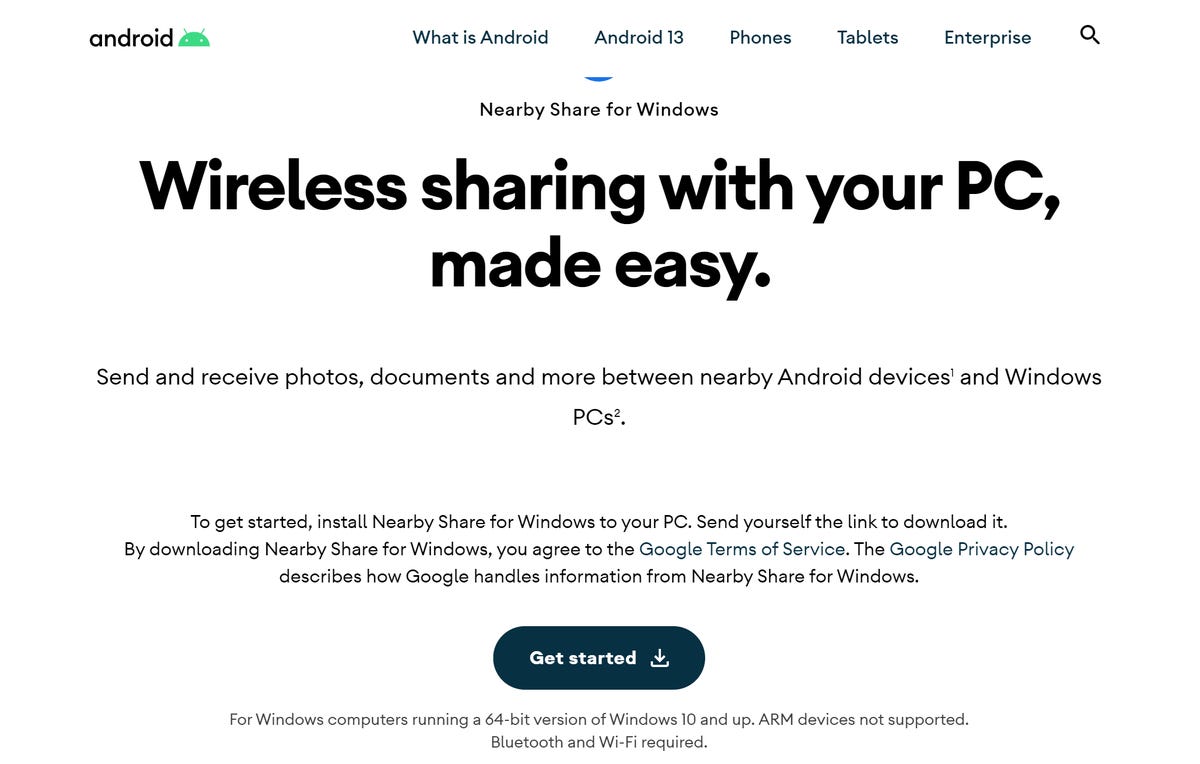
    Google has rolled out the Nearby Share app for Windows, which has been in beta since March. The new tool lets you easily send and receive files — photos, videos, music documents and more — between nearby Android devices and Windows computers.

    During the Nearby Share beta program, 1.7 million people downloaded the application, sending over 50 million files between their Android and Windows devices, according to Google.

    Nearby Share isn’t close to being the first file-sharing feature between Android and Windows. It’s not even the only file transfer tool that Google currently has — you can transfer files via Google accounts, such as Drive and Photos, or even via USB.

    However, it’s easy to use. Nearby Share doesn’t involve cables, and it doesn’t require uploading files to any existing accounts. Instead, much like Apple’s AirDrop feature, you can quickly send a file from your Android phone to your Windows computer, as long as the two devices are nearby and connected. It’s simply less complicated to use than other existing file transfer methods.

    If you’re interested in sharing files between your devices, here’s how Nearby Share works.

    For more, check out the best Android phones you can get in 2023 and our comparison of the Samsung Galaxy S23 vs the Galaxy S22.

    How to use Nearby Share on Windows and Android

    On your Windows computer, go to the Nearby Share website and hit Get Started to download the tool. Install the Nearby Share application, give it access to your computer and wait for it to boot up.

    Nearby Share website on Windows

    Once Nearby Share is up and ready, you can either sign in with your Google account or use it without one. If you sign in to your account, you can customize certain preferences that you can’t do without an account attached to Nearby Share.

    The next page will show you a few settings to customize before you continue, such as the name of your device (which you can change) and who your device is visible to. By default, your computer will not be visible, but if you tap on No One, you can choose to make your device visible to everyone, your contacts or your devices.

    Nearby Share settings

    Now that your device is visible, you can send files from your Android to your Windows.

    For this example, I’ll be sharing a video from a Galaxy S23 Ultra to a Dell G7. To share the video, I went to the Photos app on my Android phone, hit the Share button, tapped Nearby Share, found my computer and then sent the video. Whatever file you’re sharing, the process should be pretty similar: tap Share, find the Nearby Share option and then send to your computer.

    Using Nearby Share tool on Android

    On your computer, you’ll then need to accept the file. Once you do, it’ll download to your computer. You can access the file directly from Nearby Share, or from your download folder (default save).

    Nearby Share tool receiving a file

    If you want to share a file from your Windows computer to your Android device, drag and drop the file into Nearby Share, look for your device and send.

    Also, check out how to clean up your Android by deleting your browser’s cache and how you can get Windows 11 for $40 right now.

  • Norton Says Its Genie App Will Spot and Stop Online Scams

    Norton Says Its Genie App Will Spot and Stop Online Scams

    Spotting online scams is a lot harder than it used to be. Gone are the days of the Nigerian princes, horribly written emails and obviously fake web addresses.

    Cybercriminals are more sophisticated than ever. They’re creating emails and texts that look just like shipping notifications from major retailers, pleas from your real friends for financial help or a memo from your boss asking you to pay a past-due invoice.

    That’s because there can be big money in a successful scam. According to the Federal Trade Commission, American consumers lost a reported $8.8 billion to scams in 2022.

    Experts say the rise of artificial intelligence tools like ChatGPT just make things easier for scammers, who can use them to create massive amounts of highly customized and often well-written messages. In addition, the technology could be used to create so-called deepfakes, which attempt to mimic a person in audio or video form, making it look like they said or did something they didn’t.

    Officials from one cybersecurity company say the solution to that rapidly growing problem may lie in AI as well. Norton, a longtime maker of consumer antivirus software, is rolling out Norton Genie, a new free app- and desktop-based tool that helps regular people spot scams and avoid getting snookered by them.

    Genie, which launched in an early access form on Tuesday in both Apple’s app store and on Norton’s website, uses AI to quickly analyze the text, addresses, included links and other components of an email, text message, website or social media post to look for red flags that could indicate that it’s a scam.

    Michal Pechoucek, chief technology officer for Gen, Norton’s parent company, said that in recent years attackers have shifted from attacking networks and devices to going after the people that use them with scams, phishing and social engineering attacks.

    “And what we’ve seen with AI as a whole is it’s making those attacks more difficult to detect and more dangerous to users,” Pechoucek said in an interview.

    As a result, he said it’s become necessary to fight AI with AI in order to protect consumers from current threats as well as those that will emerge in the future.

    In this case, what the AI does is give users a relatively quick way to compare the contents of an email or text to the millions of samples collected by Norton’s consumer antivirus software and other cybersecurity operations. Based on what it finds, the AI could deem the email or text to be a likely scam or possibly suspicious. It’ll also provide the user advice on what to do next and give some insights as to why it thinks the email or text might be malicious.

    While there are other consumer services out there that do the same thing, they don’t work in real time, instead doing the research by hand and giving consumers a response within 24 hours, said Sahil Pruthi, Gen’s principal product manager. But by then, he says, they’ve already generally made a decision as to whether they’re going to click on that potentially dangerous link or respond to a questionable email.

    “If you think you’re being scammed you should not have to call your friend, your brother, you should be able to have that answer at your fingertips and within seconds,” Pruthi said.

    While Genie may not be lightning fast just yet, it does largely get things right when it comes to spotting scams. I got a chance to play around with the app version of Genie for a few days before its launch. Like a lot of pre-release apps and software, it’s a little slow and buggy, but it largely got things right.

    Examples of a scam text and a safe email run through the Genie app.

    A text sent to my personal phone informing me that my “debit card had been locked” was flagged as an advanced fee scam, which is where cybercriminals try to trick people into sending upfront money for fake products or services. Copy and pasted text of an email from a scammer pretending to be the Social Security Administration also was flagged as this kind of scam, as was a screenshot of an email from someone pretending to be a top antivirus provider.

    On the flip side, screenshots of email ads sent to me by Amazon and Starbucks were correctly flagged as legitimate, as was a photo of a text message I received from Google letting me know that my password had just been changed.

    The main hiccup involved an email that looked like a billing statement from my former cable provider. When I copied and pasted the text from the body of the email, Genie said there was “nothing suspicious.” But when I fed it a screen shot of the top of the email that included the sender’s email address (clearly not an official address for the cable company), it said it couldn’t advise me based on the text but that “it looks suspicious.”

    Screenshots of other fake billing statements and shipping notifications also generated inconclusive responses of “it looks suspicious” or “not sure.”

    Pruthi acknowledged that Genie isn’t perfect, at least not yet, but perfection is something that its creators continue to strive for. In addition, the AI will continue to grow more knowledgeable and accurate as it “learns” from the scam samples submitted by its users.

    “We are slowly getting there,” he said, adding that currently Genie gets it right about 80[%] to 90% of the time. “And we are continuously training to get to 100%.”

  • Save $200 on This JBL Soundbar and Get the Movie Theater Experience at Home

    Save $200 on This JBL Soundbar and Get the Movie Theater Experience at Home

    Upgrading your TV’s audio is an easy way to bring a bit of the movie theater experience right to your own living room. And you don’t have to invest in a pricey and complicated surround sound setup to get powerful, room-filling audio. The JBL Bar 5.0 is a simple standalone soundbar that provides a seriously immersive watch experience, and right now you can snag it for just $200 at Amazon, which is 50% off the usual price. There’s no set expiration for this deal, so we’d recommend getting your order in soon if you don’t want to miss out on this savings.

    The JBL Bar 5.0 packs a big punch for a single speaker, and is loaded with tons of advanced features that can make all your shows, movies and games feel more immersive. It’s a five-channel soundbar that’s equipped with Dolby Atmos support and JBL’s MultiBeam technology for 3D surround sound without the need for multiple speakers. And with four passive radiators, it still boasts deep, rich bass even without a subwoofer. It also supports Dolby Vision and has an HDMI eARC port with 4K passthrough, so you don’t have to sacrifice video quality for better sound. Plus, it’s equipped with AirPlay, Chromecast and Bluetooth connectivity so it’s easy to stream audio wirelessly as well. And it’s compatible with Amazon Alexa, so you can control it hands-free with a smart speaker or display.

    And if you’re in the market for a different model or speaker setup, you can check out our full roundup of all the best soundbar deals for even more bargains.

  • Move Over Threads, TikTok is Taking Its Spin on Text Posts

    Move Over Threads, TikTok is Taking Its Spin on Text Posts

    TikTok has begun allowing creators creators to make posts with just text, adding more non-video features to the short-form video app, the company said in a press release on Monday.

    Much like on Instagram Reels, TikTok creators can upload text with a simple background for people to read as they’re swiping through content. With text posts, TikTok says you now have more ways to express yourself beyond video.

    This isn’t the first non-video feature introduced to TikTok. Late last year, TikTok brought the ability to share multiple photos in a slideshow in what it called Photo Mode. Here, creators could add captions of up to 2,200 characters. The new text posting feature isn’t too dissimilar from Photo Mode, just minus the photos.

    TikTok text posts

    How to create a text post on TikTok

    Here’s how to use the new text post feature:

    1. Log into the TikTok app.
    2. Go to the Camera page.
    3. There will be three choices: photo, video and text.
    4. Choose Text.
    5. Type out the words you want to post.
    6. On the Post page, you can then customize your text post, like adding sound, tagging a location, enabling comments, allowing Duets, adding stickers, choosing background colors and more.

    TikTok is the latest social media company to introduce text-based sharing. Earlier this month, Meta launched Threads, a Twitter competitor that aims to be a bit more lighthearted and jovial. The app saw immediate success, with 100 million signups in the first week, making it the fastest growing app ever. Momentum on Threads has waned significantly, however, as the app still lacks many features found on Twitter. But it shows an appetite for Twitter alternatives as the longstanding text-based social media app has made a sharp pivot after being purchased by Tesla CEO Elon Musk late last year.

    Since Musk’s takeover, Twitter has seen elevated extremism and unbanned suspended accounts. It also took away blue verification check marks from journalists, celebrities and publications, unless they ponied up $8 per month for Twitter Blue. The buy-in nature of verification led to much consumer confusion early on, even going so far as to affect the stock market.

    TikTok didn’t immediately respond to a request for further comment.

  • My Galaxy Z Flip 5 Wishlist: Anticipating Samsung Unpacked’s Most Exciting Reveal

    My Galaxy Z Flip 5 Wishlist: Anticipating Samsung Unpacked’s Most Exciting Reveal

    Samsung is expected to announce the Galaxy Z Flip 5 this week at its Galaxy Unpacked event on July 26. We will likely learn what’s next for Samsung’s foldable phones and could see the Galaxy Z Fold 5. We won’t know anything for certain until Wednesday, but nearly a year ago we got the Galaxy Z Flip 4. It was a small step forward for Samsung’s pocket-size flip phone, but now it has a new rival in the recently launched — and quite excellent — Motorola Razr Plus. The bar has been raised for Samsung’s smallest foldable and here’s what I think the Galaxy Z Flip 5 needs in order to be a success.

    With the Galaxy Z Flip 4, Samsung fine-tuned the phone’s design, added a few new software tricks, and improved staples like nighttime photography and battery life. These are all welcome upgrades that address shortcomings from previous models. However, I’d like to see more features that take advantage of its foldable design on the next version.

    TM Roh, the president and head of Samsung’s mobile experience business, recently published a blog post discussing the importance of design when it comes to foldable phones. That has led to further speculation that we’ll learn more about the Z Flip and Z Fold’s future on July 26.

    A larger cover screen

    After reviewing the Razr Plus, I’m convinced the Galaxy Z Flip 5 needs a bigger cover screen. Motorola’s new phone has a 3.6-inch outer display compared to the Z Flip 4’s 1.9-inch cover screen. You can do a lot with the Razr’s external display, from playing games to browsing Google Maps and typing an email. The Galaxy Z Flip 4’s smaller cover screen is much more limited and is ideal for brief interactions, like sending a canned response to a text message or peeking at your calendar.

    You might be wondering why having a larger cover screen is so important if you’re planning to use the phone primarily when it’s open. Even though I haven’t used the new Razr extensively yet, the cover screen seemingly has the potential to add more on-the-go convenience. Since it’s small enough to fit in the palm of my hand when closed, I can imagine it being useful for responding to a text message or flipping through my inbox when I only have one hand free.

    If the rumors turn out to be true, Samsung may indeed give the Galaxy Z Flip 5 a larger external screen. The Twitter account Ice Universe, which has a solid history of leaking details about unreleased Samsung products, says the Z Flip 5 will have a 3.4-inch cover display.

    razr plus cover screen

    More Flex Mode features

    Samsung popularized the idea of using flip phones as a built-in tripod for taking photos and videos. Samsung calls this feature Flex Mode, and it allows the Z Flip and Fold to split apps between the top and bottom portions of the display when folded halfway. Samsung has expanded Flex Mode since the original Flip’s launch by adding new features such as the ability to use the bottom portion of the display like a mini trackpad.

    While it’s nice to see Samsung brainstorming new ways to put the Z Flip’s nontraditional shape to use, the trackpad functionality isn’t terribly practical, as my colleague Patrick Holland wrote in his review. It feels like a solution looking for a problem rather than a reason to want a foldable phone in the first place.

    In the Z Flip 5, I’d like to see Samsung add more functionality to Flex Mode that taps into the phone’s ability to bend and fold in different ways. Having a larger screen on the front could also open up some new possibilities in this regard.

    Samsung Z Flip 4

    Samsung could take notes from Google and Motorola, both of which have shown some creative uses for foldable phones. The new Razr, for example, can show a preview of a photo being taken on its external screen, enabling the subject to see what they look like before you hit the shutter button. The Pixel Fold will be able to use its dual screens to show translated speech on the outer and inner displays during a conversation, potentially making real-world encounters in different languages less awkward.

    To be sure, I won’t know how useful Google’s translation feature is until that capability launches with Android 14. But the use cases that Motorola and Google are pitching seem practical rather than gimmicky, which feels like a step in the right direction for foldables.

    A less noticeable crease

    The Galaxy Z Flip 4 in Flex Mode in someone's palm

    One of the biggest challenges with today’s foldables is the crease that runs across the center of the screen. Now that Samsung is heading into the fifth generation of its foldable phones, I’d like to see a crease that’s significantly less noticeable — if not invisible. Oppo and Huawei have done a better job of eliminating the crease in their foldables in recent years, as my colleagues have noted, making me hopeful that Samsung’s next device will show similar progress.

    There’s a chance that may very well be the case. Ice Universe also reports that the Z Flip 5 and Fold 5 will have a new hinge that will enable the phones to shut completely when closed, with no gap, a change that may also make the crease more subtle.

    Longer battery life

    Samsung improved the Galaxy Z Flip 4’s battery life compared to the Z Flip 3, and I’m hoping it continues to do so on the Galaxy Z Flip 5. As noted in CNET’s Galaxy Z Flip 4 review, the phone’s battery can make it through a full day but drains faster if you’re watching video and taking video calls — two tasks that the Z Flip is well-suited for since it can be easily propped up.

    A Galaxy Z Flip 4 in the open position

    Battery life in a phone can never feel long enough, so I’m hoping to see more of an improvement in the Z Flip 5. If the Z Flip 5 runs on the same processor as the Galaxy S23 series, a version of the Qualcomm Snapdragon 8 Gen 2 that’s been optimized for Samsung’s devices, it’s possible we’ll see some gains in power efficiency.

    Better cameras

    The Galaxy Z Flip 4’s 12-megapixel wide and ultrawide cameras take decent photos, but I’d like to see Samsung bring the Z Flip 5’s cameras up to par with the Galaxy S23’s. Samsung’s nonfolding phone has a 50-megapixel main camera, 12-megapixel ultrawide camera and 10-megapixel telephoto camera.

    The Galaxy Z Flip 4's exterior and cameras

    I’m not expecting Samsung to add a telephoto lens to the Galaxy Z Flip 5, since doing so would make it difficult to increase the size of the cover screen. But I’m hoping Samsung improves the camera in other ways, such as by increasing the resolution or pixel size. In his review, CNET’s Patrick Holland described the Z Flip 4’s cameras as B-grade, showing there’s certainly room for improvement. But if the Galaxy Z Flip 5 inherits the Galaxy S23’s processor, we’ll likely see back-end upgrades that enhance the way photos are processed, too.

    Overall, I’m hoping to see Samsung add more functionality that makes the Z Flip stand out, while cutting down on the compromises that need to be made when choosing a foldable phone over a standard phone. Changes like these could go a long way towards making foldables broadly appealing in the way that Samsung envisions.

  • Lenovo Yoga 7i 16: Large, Long-Lasting 2-in-1 to Flip For

    Lenovo Yoga 7i 16: Large, Long-Lasting 2-in-1 to Flip For

    The Lenovo Yoga 7i 16 serves up ample screen real estate and two-in-one versatility along with strong performance and a lengthy runtime — and does so for a reasonable price of $1,000. Lenovo’s largest convertible features a roomy 16-inch, 16:10 display that makes it a good fit as a home or work laptop where you aren’t connected to an external monitor. And despite its large display, the Yoga 7i 16 offers outstanding battery life.

    As a tablet, however, this 16-inch, 4.5-pound feels a bit unwieldy in your hands and is best used on a lap or desk. If you are in search of a 16-inch two-in-one and envision a near 50/50 split between laptop and tablet modes, I’d steer you toward the LG Gram 16 2-in-1 because it offers a big display and long battery life in a package that’s more than a pound lighter than the Yoga 7i 16. Our Yoga 7i 16 test model is more affordable than a comparable LG Gram 16 2-in-1 configuration, however. This Lenovo’s component lineup is strong for the price, but the real value of the Yoga 7i 16 is its large display and long battery life. It’s a good pick for convertible shoppers who will use the system more as a laptop than a tablet.

    LenovoYoga 7i 82YN-16IRL8

    Price as reviewed $1,000
    Display size/resolution 16-inch, WUXGA 1,920 x 1,200 16:10 aspect ratio, 60Hz refresh rate, 300nits,
    CPU 1.7GHz Intel Core i7-1355U
    Memory 16GB DDR5 5,200MHz RAM
    Graphics 128MB Intel Iris Xe Graphics
    Storage NVMe Intel 512GB SSD
    Networking Wi-Fi 6 (802.11ax) (Dual band) 2*2 + Bluetooth 5.1
    Operating system Microsoft Windows Home 22H2

    The Yoga 7i 16 line starts at $885 (regularly discounted to less than $800 at Lenovo) for a model with a Core i5-1335U CPU, 8GB of RAM, a 512GB SSD and a 16-inch touch display with a 1,920×1,200-pixel resolution and 300-nit brightness rating. Our $1,000 test system is available at Best Buy and bumps you up to a Core i7-1355U CPU and 16GB of RAM while supplying the same display. A display upgrade to a 2.5K-resolution (2,560×1,600), 400-nit panel is available on models starting at $1,140 (but, again, currently discounted to $885). We would strongly urge you to opt for the higher-resolution display. The Yoga 7i 16 starts at 759 in the UK. Pricing isn’t available yet in Australia, where the Yoga 7i 16 is listed as available soon.

    The 16-inch Lenovo Yoga 7i two-in-one laptop on a wooden table with a blue background.

    The Yoga 7i 16 supplies a 13th-gen Core i7 CPU and 16GB of RAM; many models at this price make you squeak by with a Core i5 chip and 8GB of RAM. The system’s efficient 13th-gen Core i7 U-series processor sits in the sweet spot of providing great application performance while also delivering impressive battery life. Compared with similarly sized laptops and convertibles, the Yoga 7i 16 finished at or near the top of every test. It was particularly strong on our PCMark 10 and Geekbench 5 tests, indicating a well-rounded machine ready to tackle office tasks and engage in multitasking without a hiccup. Most impressive was its showing on our battery life test, where it lasted for 13 hours, 40 minutes. That’s an outstanding runtime for any Windows laptop and particularly so for a system with a 16-inch display.

    Thin yet sturdy

    There’s nothing particularly interesting to the look of the Yoga 7i 16. Like so many other laptops these days, it features a rather dull, dark gray chassis Lenovo calls Storm Grey. But for the price, it’s a solid enclosure. For one, it’s an all-aluminum case at a price where many models slap a metal lid behind the display and hope you don’t notice the plastic keyboard deck. It feels rigid, with only a hint of flex in the lid and keyboard deck. For another, it has passed MIL-STD 810H tests, which means it offers military-grade protection against drops, vibration, shock, dust, altitude and extreme temperatures.

    The 16-inch Lenovo Yoga 7i two-in-one laptop on a wooden table with a blue background.

    The military ruggedness doesn’t come at the expense of portability. The Yoga 7i 16 features thin display bezels and measures a trim 14.3 by 9.8 by 0.7 inches. It’s quite thin for a 16-inch laptop, particularly a two-in-one since touchscreens require extra display layers. While it’s thin for a 16-inch laptop, it’s of average heft, weighing in at 4.5 pounds (the extra display layers also add to the weight). That’s the same weight as the HP Spectre x360 16 and an ounce or two lighter than the Dell Inspiron 16 Plus laptop. The LG Gram 16 2-in-1 is the exception to the rule among 16-inch models; it weighs a scant 3.3 pounds.

    I’d describe both the keyboard and touchpad as below average. The keys offer shallow travel and yet feel a bit soft and loose. I prefer a snappier, firmer feel. You do get a number pad, an item for which most 16-inch laptops find room. And the keyboard offers two-level backlighting, which is always helpful when typing in a dark room or red-eye flight. The touchpad is generously proportioned and has a matte finish for smooth gliding, but its click response offers a bit too much travel and feels clacky.

    The 16-inch Lenovo Yoga 7i two-in-one laptop on a wooden table with a blue background.

    The best part of the display is its size. The 16-inch panel with a tall 16:10 provides ample space on which to work or play. If you are going to lug around a 4.5-pound laptop, at least make it one with such a display. The 1,920×1,200-pixel resolution suffices for watching shows and movies, but if you’re planning on using the Yoga 7i 16 for school or work and will be spending long stretches reading on its screen, then I’d encourage you to choose a model with the upgraded 2.5K (2,560 x 1,600 pixels) panel. Text looks fuzzy when seated close up on the 1,920×1,200 display and lacks the inky black sharpness you get from a finer resolution. The display upgrade is also rated for 400 nits of brightness, which is appreciably more than the 300-nit rating of our test system.

    The webcam checks off all three boxes we like to see checked: 1,080p resolution [check]; IR capability for using facial recognition for easy, secure logins [check]; and a physical shutter to cover the lens to protect your privacy when it’s not in use [check]. The camera’s images looked crisp and well-balanced, with only a fraction of the graininess that besets that of 720p webcams.

    The 16-inch Lenovo Yoga 7i two-in-one laptop on a wooden table with a blue background.

    The Yoga 7i 16 features a basic pair of integrated stereo speakers, and they produce average laptop audio. Many larger laptops squeeze in four speakers for fuller sound, but you get only two here. You might not mind them for watching shows and movies, but music playback is less than enjoyable with the distinct lack of a bass response.

    The port selection is solid, with a pair of USB Type-C ports and a pair of USB-Type A ports in addition to an HDMI out. Both USB-C connections support Thunderbolt 4, and you also get a microSD card slot.

    Budget two-in-one shoppers will find much to like in the Yoga 7i 16, from its sturdy, all-metal chassis and roomy display to its peppy performance and long-lasting battery. We suggest choosing a model with a higher-resolution display, however, since it’s a small price to pay for crisp text. We’d also recommend the impressively lightweight LG Gram 16 2-in-1 for anyone looking for a big-screen convertible. It’s a little more money, but you get a better display and battery life that’s just under 13 hours.

    Geekbench 5 (multicore)

    LenovoYoga 7i 82YN-16IRL8 8809LG Gram 16 2-in-1 8765Asus VivoBook 16X OLED 7984Dell Inspiron 16 2-in-1 7202HP Laptop 17 5880
    Note: Longer bars indicate better performance

    Cinebench R23 (multicore)

    Asus VivoBook 16X OLED 12385LenovoYoga 7i 82YN-16IRL8 9476Dell Inspiron 16 2-in-1 8181LG Gram 16 2-in-1 8137HP Laptop 17 7098
    Note: Longer bars indicate better performance

    3DMark Wild Life Extreme

    LG Gram 16 2-in-1 3853LenovoYoga 7i 82YN-16IRL8 3736Dell Inspiron 16 2-in-1 2543Asus VivoBook 16X OLED 2133HP Laptop 17 1720
    Note: Longer bars indicate better performance

    PCMark 10 Pro

    LenovoYoga 7i 82YN-16IRL8 5988HP Laptop 17 5781LG Gram 16 2-in-1 5383Dell Inspiron 16 2-in-1 5331Asus VivoBook 16X OLED 5282
    Note: Longer bars indicate better performance

    Online streaming battery drain test

    LenovoYoga 7i 82YN-16IRL8 820LG Gram 16 2-in-1 767Dell Inspiron 16 2-in-1 697HP Laptop 17 530Asus VivoBook 16X OLED 454
    Note: Longer bars indicate better performance

    System Configurations

    LenovoYoga 7i 82YN-16IRL8 Microsoft Windows 11 Home; 1.7GHz Intel Core i5-1355U; 16GB DDR5 5,200MHz RAM; 128MB Intel Iris Xe Graphics; 512GB SSD
    Asus VivoBook 16X OLED F1603ZA-DS74 Microsoft Windows 11 Home; 2.3GHz Intel Core i7-12700H; 16GB DDR4 3,200MHz RAM; 128MB Intel Iris Xe Graphics; 512GB SSD
    Dell Inspiron 16 2-in-1 Microsoft Windows 11 Home; 1.3GHz Intel Core i5-1235U; 8GB DDR4 3,200MHz RAM; 128MB Intel Iris Xe Graphics; 512GB SSD
    HP Laptop 17 Microsoft Windows 11 Home; 2.3GHz AMD Ryzen 5 5625U; 8GB DDR4 3,200MHz RAM; 512MB AMD Radeon Graphics; 256GB SSD
    LG Gram 16 2-in-1 Microsoft Windows 11 Home; 2.1GHz Intel Core i7-1260P; 16GB LPDDR5 5,200MHz; 128MB Intel Iris Xe Graphics; 512GB SSD

  • Nakamichi’s Pricey Dragon Home Theater System Will Be Even Pricier

    Nakamichi’s Pricey Dragon Home Theater System Will Be Even Pricier

    It’s now going to cost you even more to get the Nakamichi Dragon 11.4.6 home theater system. The company announced on Monday that it’s raising its already sky-high prices by $400 due to an increase in manufacturing and packaging costs. It will still offer 1,000 units at the original $3,499 price, with preorders opening on Aug. 3 at 12 p.m. ET (9 a.m. PT).

    Each Dragon unit consists of over 700 components and requires a 110-step assembly process that’s done entirely by hand, the company said. The completed system weighs 140 pounds and is packaged with enough protection to withstand a 12-foot drop test, according to Nakamichi. The lengthy post-assembly inspection process, coupled with shipping adjustments made to minimize the risk of crushing the product, led to the price increase.

    “We understand that price adjustments can be a sensitive matter,” the company said on its website. “Rest assured that this decision was made after careful consideration and analysis of producing 500 Dragon systems.”

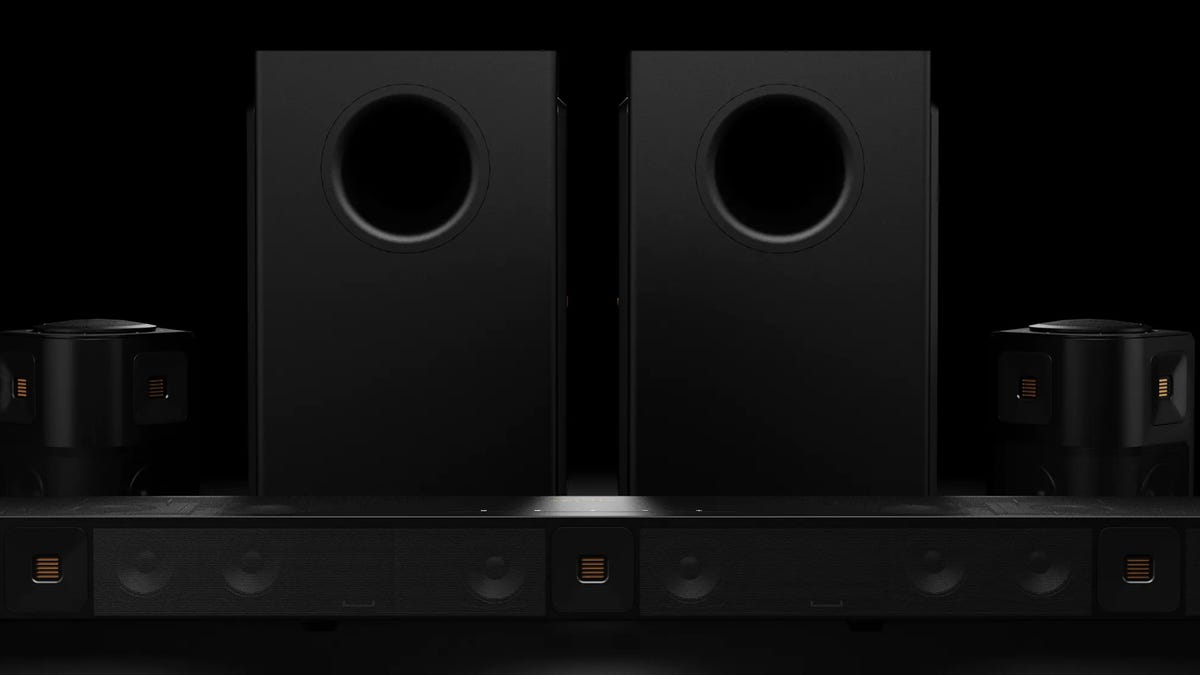
    The Nakamichi Dragon, which was announced at CES in January, is set to be the company’s flagship home theater system. The plug-and-play unit features 14 speaker drivers powered by seven digital amplifiers that are embedded into a stainless steel casing. It comes with two 8-inch wireless quad subwoofers and omnimotion wireless surrounds, which integrate multiple channels together for multidirectional sound.