Watching March Madness hasn’t always been easy. With games spread out across four networks — CBS, TNT, TBS and TruTV — you often would have had to pay for a cable, satellite or streaming TV package if you wanted to catch all the action. Not so this year.
In 2024, you need only two streaming services for March Madness, for less than $30 total: Max with Ads and Paramount Plus with Showtime. Together, the two will run you $22 for the month of the tournament, which starts with Selection Sunday (on CBS) on March 17, continues all that week and culminates with the championship game (on TBS) on April 8.
Max (with ads) runs $10 per month and carries live sports from the Turner networks (TNT, TBS, TruTV) as part of its B/R Sports add-on, while Paramount Plus with Showtime comes in at $12 per month and offers live CBS feeds. Neither have contracts, so should you want to cancel once the tournament’s over, you could easily do so.
For those considering getting Max at the cheaper annual rate, the streaming service is offering a new deal through April 9 that takes over 40% off the regular price if you’re willing to prepay for a year. For the Max with Ads option, that would bring the price down to $70 for the first year, which works out to $5.83 per month.
At $22 total, this would be a significant step down from last year when the cheapest option was a combination of Paramount Plus Premium (the precursor to Paramount Plus with Showtime that was $10 per month) for the CBS games and Sling TV Blue (then $40 per month) for the TNT, TBS and TruTV action.
While this year’s streaming may be cheaper, it is worth pointing out this may be short-lived. Max was planning on charging $10 per month extra for the B/R Sports add-on to watch live games, but decided in January to delay charging for the feature by “a few more months” to “finalize some tech integrations that will ensure a more seamless customer experience with our platform partners.”
It’s fair to say that the two nights I spent at Taylor Swift’s Reputation Stadium Tour in 2018 feature among the top five in my life — and not just because I met Swift in person before the show. The handful of other times I’ve seen her perform, including the 1989 tour, would easily make the top 10.
And yet I won’t be among the many thousands of people streaming the Eras Tour Movie this weekend, even though I’m a Disney Plus subscriber. Likewise, I didn’t go to see the film in the theater or pay to rent it online. I’ve decided not to watch the movie at all — for now, at least. (I realize you may feel otherwise, in which case…)
Read more: How to Watch the Eras Tour Movie on Disney Plus
The reason is simple: As a British Swiftie, I haven’t had the chance to see the Eras Tour live yet. All this is set to change in a touch under three months when Swift comes to Edinburgh as she embarks on the UK leg of her tour. This is the first time I’ll see the show that’s been dominating cultural discourse for the past year as Swift has traveled all over the US, Latin America, Australia and Singapore.
Until I experience the Eras Tour for myself, I’m not going to watch the movie version. This is because I want the first time I see the show in full to be in person rather than through a screen. I’m far from alone in making this decision. Many Swifties across Europe with tickets for this summer’s dates have also chosen to hang back from overindulging in tour content. One of my friends has achieved the impossible and managed somehow to avoid almost all tour content on social media, and still doesn’t know the set list.
I’ve not been that strict with myself. I’m familiar not only with the set list, but also the costumes and each beat of the opening number of the show. I’ve examined diagrams that map Swift’s movements around the stage so I can choose the best positions for the nights I have standing tickets. After every show, I let myself watch the surprise song performances in the acoustic section, as I know I’m unlikely to get to see these songs live. At times it’s made the wait for the show to arrive in my region of the world feel painful, but it’s hard not to dip my toe into the copious amount of tour content available.
Read more: Watch Taylor Swift’s Exclusive Eras Tour Clip a Day Early on Apple’s App Store
After the Reputation Tour, the movie that was available to stream until the end of 2023 on Netflix became one of my most frequently rewatched pieces content on the platform. It was almost permanently downloaded on my iPad so that I could turn to it while sleepless on overnight flights or delayed on British trains. My now-husband even put it on to distract me while he was preparing to propose.
I can already anticipate a point in the near future where I’ll feel the same way about the Eras Tour Movie. Once I’ve experienced the show for myself, I’ll immediately discard my current stance in favor of streaming it on repeat. It’s a real test of my willpower not to give in right now, just as it was when it was showing at my local theater. (I did pop in to buy the popcorn bucket and cup, though.)
I hope also that the movie comes back to theaters at a later date for Swifties like me and my friends who’ve chosen to refrain for now. I know that reliving the Eras Tour on screens both big and small will be something for us to look forward to once the post-concert depression sets in.
When I finally watch the movie, it will be not as a precursor to delights that lie ahead, but as a time capsule containing a treasured memory of what will inevitably be a new entry to the list of the top five nights of my life.
Bonus track: TikTok Is Changing the Way You Discover Music. Meet the Young Creators Making It Happen
The likes of Real Madrid, Bayern Munich and Manchester City will discover their next opponents in the Champions League quarter-finals, with today’s draw at UEFA’s headquarters.
The line-up for the eight teams remaining in the tournament includes three sides from Spain, two each from England and Germany, and one from France.
Friday’s event will also include the draw for the next rounds of the UEFA Europa League, which includes Liverpool, West Ham, AC Milan and Bayer Leverkusen, as well as the Europa Conference League, with the likes of Aston Villa and Lille looking to find out who they’ll face next in that tournament.
As well as the quarter-finals, today’s event will also include draws for the semi-finals and final for all three tournaments mapping out each team’s potential route to glory.
Below, we’ll outline the best live TV streaming services for watching every game wherever you are in the world.
UEFA Champions League Quarterfinals Draw: When and where?
The Champions League draw takes place on Friday March 15, 2024 at UEFA headquarters in Nyon. The event starts at 12 p.m. CET local time in Switzerland, which is 11 a.m. GMT, 7 a.m. ET or 4 a.m. PT in the US and Canada, and 10 p.m. AEDT in Australia.
Livestream the UEFA Champions League Quarterfinals draw for free worldwide
The good news for football fans is that today’s draw will be available to watch for free via UEFA’s official website.
Alternatively, international broadcasters of live Champions League matches will also be showing the draw as well, with viewing options for the US, UK, Canada and Australia outlined below.
Livestream the UEFA Champions League Quarterfinals drawin the US
As well as UEFA’s website, American soccer fans can also stream Friday’s draw via Paramount Plus, which has exclusive live English-language broadcast rights in the US for UEFA Champions League matches.
Livestream UEFA Champions League Quarterfinals drawin the UK
TNT Sports has Champions League live broadcast rights in the UK.
Livestream UEFA Champions League Quarterfinals drawin Canada
Viewers in Canada can stream the Champions League draw via sports streaming subscription service DAZN and for free via UEFA’s website. DAZN has exclusive broadcast rights to Champions League games this season.
Livestream UEFA Champions League Quarterfinals drawin Australia
Football fans Down Under can watch the UCL quarterfinal draw on streaming service Stan Sport, which has exclusive rights to show the Champions League live in Australia this season.
Low storage space on your iPhone can be a real problem. Not only will it keep you from installing new apps, you may not be able to download the latest iOS software updates. Even if your iPhone is stuffed with videos, photos and apps, however, you might not need to delete any of them to get some storage space back.
Before deleting anything, you can and should take advantage of certain iOS features to free up storage on your iPhone.
There are two built-in iOS settings that can help you clean up a significant amount of storage on your iPhone — one permanent and the other temporary — so you can install the latest software updates, take more photos and videos and download more apps. Here’s what you need to know.
If you want more tips on getting more iPhone storage, check out how to free up space on your iPhone with these easy tricks and the best cloud storage options in 2024.
Optimize your iPhone photos and videos to free up storage
If you want to keep your precious memories (even just your meme screenshots) but still want to free up storage, the easiest way is to optimize the photos and videos already stored on your device.
By default, every time you take a photo or video, it’s saved in full resolution on your device. If you’re capturing photos and videos in the highest resolution possible, they can take up quite a bit of space. A minute of video shot in 4K at 60fps takes up approximately 400MB — nearly half a GB. That’s pretty significant.
To optimize your photos and videos, go to Settings > Photos and toggle on Optimize iPhone Storage (for this to work, you’ll need to have the iCloud Photos setting above it enabled). Depending on how many photos and videos you have on your iPhone, this can take up quite a bit of time, but once it’s finished, you should see significantly more space on your device storage.
All of your full-resolution photos and videos are then transferred over to your iCloud, while smaller, lower-resolution versions are kept on your device, to take up less space. If you want to access your higher-resolution photos and videos, you can go into the Photos app and download any file that’s being optimized; this requires a decent internet connection. Your recently taken photos and videos may exist in full resolution, so you won’t need to download every photo or video.
If you don’t have enough iCloud storage, it’s easier to upgrade your cloud than get a new phone. In the US, you can upgrade to 50GB for only a dollar a month, or you can go bigger: 200GB for $3 a month or 2TB for $10 a month. Prices vary depending on your country or region.
To upgrade your iCloud on your iPhone, go to Settings > (your name) > iCloud > Manage Account Storage > Buy More Storage. Choose a plan and then follow the instructions. If you upgrade to any paid iCloud subscription, you’ll get access to iCloud+, which also offers the iCloud Private Relay and Hide My Email features.
Offload your biggest apps to save iPhone space
You don’t use every application stored on your iPhone. Many of them just sit there, like apps for your favorite airlines, third-party cameras and music production. Even if you use them occasionally, you probably don’t need daily access to most apps, which is why you should consider offloading apps in case you desperately need storage.
Say you want to download and install the latest iOS update. If it’s a major update, like iOS 16, you may need a little over 5GB to install the software. If it’s a point update, like iOS 16.1, you’re looking at around 1GB. And if you don’t have enough storage space to update, you can quickly offload apps, which is a middle ground between keeping and deleting your apps.
Go to Settings > General > iPhone Storage and check which apps are taking up the most storage. Certain built-in apps like Photos and Messages can’t be offloaded, so be warned. If you find a sizable app you want to offload, tap on it and hit Offload App. Wait a little bit and the app should then be removed offline, while your documents and data will stay saved on your device.
If you need temporary storage, for a software download, just go through the list and offload every app you can. The amount that’s offloaded for each app will vary, but you should see the number next to App Size. Discard the number next to Documents & Data, because that will stay on your device. The only way to get rid of that is to actually delete the app.
Offload as many apps as you need until you have enough storage. You can’t use an app that’s offloaded, but if you want to get an app back, go to your App Library and tap on the iCloud button to re-download it. If the offloaded app is on your home screen, simply tap on it to download it. You won’t have to re-sign in or anything; you’ll have access to the app as if it was never deleted.
Since this past September, Apple fans have been able to use the new features that iOS 17 brought to compatible iPhones. These upgrades include additions like StandBy mode and the Journal app. One of these new-to-iPhone features is NameDrop, a contact-sharing tool that lets you share your number with just a tap of your phone.
The release of iOS 17, and NameDrop, followed the announcement of the iPhone 15 series, the Apple Watch Series 9 and the Apple Watch Ultra 2 at Apple’s Wonderlust event in September. If you’ve got an iPhone running iOS 17, you’re in luck; NameDrop is available (and pretty easy) to use. However, not everyone is sold on it.
Last year, law enforcement agencies around the country raised concerns over the feature’s safety and spoke of a possibility of personal information being stolen. If you’re worried about NameDrop, read on: We’ve got everything you need to know about the feature and how it works.
Read more: Best iPhone of 2024
What is NameDrop?
NameDrop is the newest way iPhone users can share contact information with each other. You no longer have to fork over your phone to strangers if you want to swap contact info. Simply tap your phones together to swap information.
When can I use NameDrop?
If you’re an iPhone user, you’re in luck. NameDrop is available to you right now, or as soon as you update to iOS 17 — that is, as long as you have a supported iPhone.
How does NameDrop work?
In a Newsroom post, Apple called NameDrop a “new AirDrop experience.” People with iPhones can “hold their iPhone near another to share their contact information with only their intended recipient”. When the feature was released back in September, Apple clarified that you’ll be able to select what information you share with other people, so you won’t have to worry about accidentally sending super-personal information to strangers.
Essentially, all you have to do is place your iPhone close to the intended recipient of your NameDrop, and you’re done. Once you’ve placed the phones together, a Contact Poster will pop up (that is, the image that pops up when you call someone). After that, you’ll have the option to just receive the contact or send your own back.
You’ll only be able to NameDrop with other iPhone users running iOS 17 or later and Apple Watch users running Watch OS 10 or later. If you want to get in on the contact-sharing action, you’ll want to make sure your device is running the right version of its operating system.
So… how do I turn NameDrop off?
If you still feel uncomfortable or unsafe using NameDrop, Apple’s got you covered.
All you have to do is open the Settings app, and then tap on General. After that, navigate to the AirDrop tab. Once you open the tab, simply toggle the Bring Devices Together option off. And just like that, no more NameDrop.
For more iOS 17 details, check out everything you should do before updating to iOS 17 and five hidden iOS 17 features we think you should know about.
I Took 600+ Photos With the iPhone 15 Pro and Pro Max. Look at My Favorites
Your typical day may look a little something like this: Wake up, stare at a small screen (phone). Go to work, stare at a medium-sized screen (computer), with intermittent breaks to look at the small screen again. Once you get home for the evening, maybe you take the edge off by making the final switch to the large screen (television).
Technology dominates our days, whether for work or personal use, and you’ve probably felt the headache or general fatigue around your eyes after a long day of screens. If you can’t flat-out reduce your screen time, how might you at least reduce symptoms of digital eye strain like headaches, blurry vision and dry, tired eyes?
Televisions contribute to eye strain just like any other device, even though the larger screen effects are studied less than phones and laptops. Regardless of the screen size, though, it’s a myth that blue light or even sitting too close to the screen are the chief contributors to eye strain. Experts are still trying to nail down just how screens and other things held close to the face, like books, affect eye development and risk of myopia in kids.
One of the main culprits behind digital eye strain is hidden in plain sight.
Two expert eye doctors explain why eye strain occurs, how to reduce the discomfort and how TV screens may be more comfortable to look at than phones and laptops.
For more on eye care, here are simple ways to protect your eye health and our picks for the best places to buy eyeglasses online.
The easiest way to relieve eye strain: blink!
There are loads of blue light glasses on the market, but they aren’t actually proven to reduce eye strain. That’s because blue light isn’t the main aggravating factor in the first place.
Ethan Stern, an ophthalmologist at The University of Texas Health Science Center at San Antonio, says there are a few behavioral and lifestyle factors that are most accurately linked to eye strain: blinking, sleep habits and nutrition. Keeping the eyes lubricated by blinking frequently or using eye drops is the number one defense against eye strain. Eating healthy and getting good sleep can also reduce strain.
Sidney Gicheru, spokesperson for the American Academy of Ophthalmology and medical director of LaserCare Eye Center in Dallas, echoed Stern’s point about most people falsely blaming blue light for eye strain, overlooking the impact of blinking.
We normally blink around 15 times a minute. But when we use screens, we tend to only blink five to seven times a minute, Gicheru said.
So if you can remember to blink more, you’ll likely experience eye strain less.
Practical tips to reduce eye strain
It’s a myth that sitting too close to your tech will hurt your eyes, Stern said. Still, sitting further away from your screen increases the chance of looking away from it intermittently and breaking focus on the screen every now and again, which is more comfortable on your eyes.
Data around eye strain related to TVs, rather than phones or laptops, is limited. But Stern says he expects the greater distance between you and a TV means you’re more likely to break that focus — maybe to look at something in the periphery or talk to someone sitting next to you.
Here are some other easy-to-use tips for reducing eye strain.
Install bias lighting, which is a soft light source located behind your TV screen. This is especially helpful in a dark room or at night. It reduces the sharp contrast between the TV screen and the surrounding area, which is easier on your eyes.
Take breaks to encourage more blinking, reducing the risk of eye strain.
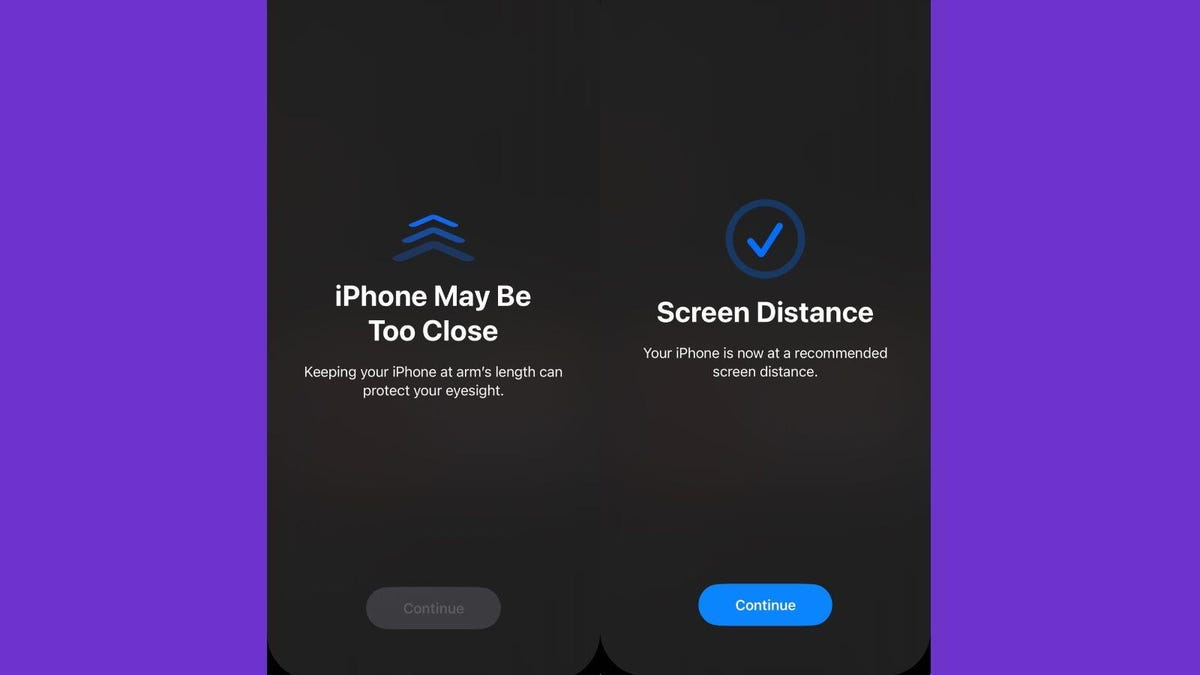
Keep at least 25 inches — roughly an arm’s length — away from screens if possible, according to The American Academy of Ophthalmology. Follow the 20/20/20 rule: Every 20 minutes, take a 20-second break and look off 20 feet into the distance.
Another hack: Stern mentioned putting a small sticky note on your laptop that says “blink” as a reminder.
What do TV makers advise?
There’s guidance out there for how far you should sit away from your TV, provided by industry groups and TV makers. For example, Sony offers this chart for screen distance to optimize your viewing experience:
Sony’s recommended seating distance
TV size
Viewing distance range (approx.)
43-inch
35 inches (2.95 feet)
49-inch
39 inches (3.28 feet)
55-inch
39 inches (3.28 feet)
65-inch
47 inches (3.94 feet)
75-inch
55 inches (4.59 feet)
85-inch
63 inches (5.25 feet)
So there’s plenty of advice for how to get the best experience from an entertainment perspective, but the best-case scenario may be finding the sweet spot between the best vantage point for viewing experience and eye health.
Adjusting these TV settings may help with eye strain too
Some TV manufacturers have settings to reduce blue light: LG and Samsung both call it Eye Comfort mode, and Hisense calls it Eye Care mode. Other makers, like TCL, allow you to manually shift the color temperature of their TV to emit warmer light.
While these experts pointed out that blue light isn’t the source of eye strain, these settings do still have utility.
Some people find increased comfort by switching their device to warmer light (sometimes called Night Mode) because it reduces glare on the screen. This helps the eyes adjust to surrounding light and reducing the risk of strain caused by glare, Gicheru said. Blue light affects our sleep-wake cycle, making warmer light modes especially helpful in the hour or two before you go to bed.
Will adjusting the color temperature from bluer (cool) to redder (warm) on your TV affect the picture quality? The short answer is yes. When you shift the color temperature, also called white balance, you may alter how the director intended the content to be viewed. Most shows and movies are intended to be viewed at a relatively warm 6,500K. That’s the color temperature CNET considers the most accurate for TV reviews.
The difference is usually subtle, unless you’re comparing an array of TVs side-by-side, like we do in CNET’s TV lab. If you make the change on a single TV at home, your eyes will likely adjust to the new color temperature after watching for a few minutes.
Our screen usage isn’t likely to decrease anytime soon, or ever, and some degree of eye strain is likely inevitable. But Gicheru said that while eye strain is uncomfortable, it won’t affect your long-term eye health.
You plug your iPhone or Android phone into its charger and… nothing happens. Big sigh. From broken or rusted charging ports to damaged power cables, there are plenty of reasons your phone might not charge and not all of them can be easily fixed at home. A common reason for faulty charging is simply that your charging port, whether that’s Lightning on the iPhone 14 Pro or USB-C on the more recent iPhone 15 Pro or Android phones like the Google Pixel 8 Pro or Samsung Galaxy S24 Ultra, is clogged with months’ worth of pocket fluff and the cable can’t quite fit in anymore.
Not to worry: This is one of the simplest and cheapest charging problems to fix. Here’s how.
Why is my charging port blocked?
There are no covers on your phone’s charging port, meaning they’re exposed to every bit of dust, dirt and debris they encounter. Every time you slide your phone into your pocket your phone will be susceptible to pocket fluff and if, like me, you’ve got pockets filled with detritus from accidentally washing your jeans with old receipts in the pockets then that’s asking for trouble. And that’s to say nothing of the biscuit crumbs I have in there. Do not ask me why I have biscuit crumbs in my pockets.
Day by day, this won’t be a problem but those tiny bits of dust and fluff will build up over the months or years you have your phone, compacting together each time you plug in your charging cable until it forms a solid barrier that stops your charger from going all the way in and allowing it to connect and charge.
If you’ve had your phone for more than six months and you’re gradually finding the charger becoming less and less stable (particularly if you have to wiggle it around to get it to begin charging) then it’s highly likely that dirt in your port is the culprit.
It’s a simple task to unclog your phone’s port. You’ll need a cocktail stick, toothpick or other thin item that you can poke in to the port to scrape out the grime. Wood or plastic is better as it’s less likely to scrape against anything inside and potentially cause harm. I’ve done this using a metal SIM removal tool and while it worked well, it’s not the safest option for your phone.
Insert your tool of choice into the charging port until it won’t go further and gently start scraping away. With an older iPhone’s Lightning port you can scrape back and forth, but with USB-C you’ll need to scrape around the charging connector, which sits in the middle of the port.
Eventually you’ll start to work the compacted debris loose and you’ll be able to encourage the dislodged material out of the port. It’s a satisfying process and you might be surprised at how much stuff actually comes out. Gently work on the sides of the port too, but be mindful not to scrape hard against any of the metal charging connectors.
Eventually you’ll have pretty much all of it out. It’s difficult to check for sure if you’ve gotten rid of it all as it’s tricky to see inside the port, even if you have a good light to hand. But once you’ve got a good amount of nonsense out, you can try your charging cable again.
Hopefully it’ll plug in more securely now and begin charging. If not, carry on trying to extract more dirt and then test the charger again. If that still doesn’t solve the issue it’s time to consider other solutions like a new cable or charger.
It’s no secret that Apple is late to the generative artificial intelligence party, with ChatGPT and competitors from Microsoft and Google already on the market. But its entry to the gen AI sphere could be coming soon: on Thursday, Bloomberg reported that earlier this year, Apple acquired DarwinAI, a Canadian startup.
DarwinAI is best known for its work in making AI systems smaller and faster. It also worked on AI technology for visually inspecting components during manufacturing. Apple has already integrated dozens of DarwinAI’s employees into the company, including co-founder Alexander Wong, according to Bloomberg.
Apple didn’t immediately respond to a request for comment and has yet to announce the purchase, but it did tell Bloomberg that it “buys smaller technology companies from time to time.”
However, the signs are all there. DarwinAI’s social media accounts and official website have been shut down, and Wong’s LinkedIn account shows that he started at Apple as the director of machine learning research in January 2024.
Apple’s plans for DarwinAI
The big question, though, is what Apple plans to do with DarwinAI. According to MacRumors, Apple purchased 32 AI startups throughout 2023, which makes DarwinAI the latest in a long list of similar acquisitions. Aside from Apple GPT, an AI chatbot that Apple reportedly uses internally, the company has been tight-lipped about its AI plans.
The company has been teasing plans that could be AI-related, though. CEO Tim Cook told investors during a quarterly earnings call in February that Apple “has some things that we’re incredibly excited about that we’ll be talking about later this year.” During that same call, Cook said Apple’s modus operandi “has always been to do work and then talk about work, and not to get out in front of ourselves, so we’re going to hold on to that.”
For now, the company’s use of AI in existing products is limited to the Apple Vision Pro and several AI-powered features in iOS 17, including AI smarts in the iPhone camera and the ability to digitally clone your voice. Given DarwinAI’s experience with making AI systems smaller and faster, an educated guess would be that the company’s technology will help add more AI features to iOS 18.
Apple’s next OS is expected to be a significant upgrade over iOS 17. Cook teased AI and generative AI already, with rumors circulating that Apple has instructed engineers to create as many AI features as possible. If the iPhone 16 ends up being a minor upgrade, as some rumors suggest, then iOS 18 may even become the bigger story for Apple in 2024. We’ll almost certainly learn more in June during Apple’s WWDC, where Apple typically previews the next version of iOS.
Our expert, award-winning staff selects the products we cover and rigorously researches and tests our top picks. If you buy through our links, we may get a commission.Reviews ethics statement
Lori GruninSenior Editor / Advice
I’ve been reviewing hardware and software, devising testing methodology and handed out buying advice for what seems like forever; I’m currently absorbed by computers and gaming hardware, but previously spent many years concentrating on cameras. I’ve also volunteered with a cat rescue for over 15 years doing adoptions, designing marketing materials, managing volunteers and, of course, photographing cats.
ExpertisePhotography, PCs and laptops, gaming and gaming accessories
The introduction of newer processors like Intel’s 14th-gen H series doesn’t preclude laptops with the older 13th-gen chips from being worth buying, especially as their prices drop. The Acer Predator Triton 14 is a good example of this and will probably become a good deal as replacements trickle out and as it continues to get less expensive.
There are two models of the Triton 14, both of which incorporate an Intel Core i7-13700H CPU and 16GB RAM. The entry model (PT14-51-78B4) is nominally $1,500 but discounted to just under $1,200 at the moment and comes equipped with a 512GB SSD, GeForce RTX 4050 GPU and 1,900×1,200 165Hz display. I’ve seen it as low as $850, though, which is a great price for it. The higher-end model I tested bumps that up to a 1TB SSD, RTX 4070 GPU and 2,560×1,6000 mini LED screen with a dynamically switchable 125Hz/250Hz refresh rate and DisplayHDR 600 certification. It lists for about $2,000 but is currently going for to $1,600. That’s a good price for what you get.
Acer Predator Triton 14 (2023, PT14-51)
Price as reviewed
$2,000
Display
14-inch 2,560×1,600 250/125Hz DisplayHDR 600
CPU
2.4GHz Intel Core i7-13700H
Memory
16GB LPDDR5-6400 (soldered)
Graphics
8GB Nvidia GeForce RTX 4070 105W
Storage
1TB NVME SSD, Micro SD slot
Ports
1 x HDMI, 2 x USB-A, 1 x USB-C/Thunderbolt 4
Networking
Killer Wi-Fi 6E AX1675i, Bluetooth 5.3
Operating system
Microsoft Windows 11 Home22H2
Weight
3.8 lbs/1.7kg
The laptop’s design doesn’t stand out from the crowd as especially good or bad. It’s got a relatively chunky profile for a 14-inch, but the lid opens out to almost flat; the full range of obtuse angles gives you a lot of leeway when trying to find a good angle on your lap, for instance. The keyboard travel feels a little shallow but responsive, and the bright, per-key RGB lighting can be a bit of a pain to configure — Acer’s PredatorSense software has essential monitoring, power configuration and lighting controls, but it could use a facelift.
There are no dedicated macro keys, unsurprising given the size of the laptop, but it would be nice if the software gave you the ability to rebind at least some of the standard keys, like the media playback controls down the right side. And if you’re a big user of the arrow keys, you may want to look for something that doesn’t have embedded ones. But there’s a dedicated button to cycle among power profiles (Quiet, Balanced, Performance and Turbo) or toggle Turbo. The Triton can get loud and a bit hot in places, like the wrist rest area.
The touchpad is a bit small but serviceable, with an old-fashioned embedded fingerprint reader. Though it has a 1080p webcam, it’s pretty mediocre.
I’ve never been a fan of the type of port and power connection layout the laptop uses; the vents on the sides push the connectors to the middle of the sides — I hate it when the power connector is in the middle of the side, because it gets in my way, and I’d have liked a second USB-C port, even if it wasn’t Thunderbolt.
It supports Nvidia’s Advanced Optimus, which means you can force it to exclusively use the discrete GPU without rebooting via the Nvidia driver.
Performance and screen
Acer doesn’t supply any color- or game-specific color profiles for the display, and it’s not terribly accurate, but it fares well enough for gaming and general-purpose use. The gamma measures 2.0 rather than 2.2, but that brings out the detail in dark areas, which works for gaming. Contrast measures high because black is excellent, but those too-bright shadow areas may make it seem lower contrast because you’re served up a lot more dark areas by games, the web and applications than zero blacks.
Color measurements
Gamut (% coverage)
White point
Gamma
Peak brightness (10% window, nits)
Full screen peak brightness (nits)
Accuracy (DE2K average/max)
SDR
98% P3, 147% sRGB, 92% Adobe RGB
6500K
2.0
680
442
2.4/3.5
HDR
98% P3
6550K
n/a
680
710
n/a
It does hit the common 6500K white point, which I find can be hit and miss with mini LED backlights, which is nice. It gets as bright as required by the DHDR 600 spec. HDR has the same too-bright shadow areas, which means video doesn’t look as great as you’d expect, but it’s still very good.
The screen has a high refresh rate of 250Hz — you can actually set it to 125Hz, 250Hz or to dynamically switch between the two (in addition to a 60Hz setting) in SDR; in HDR you don’t have the 125Hz option It’s not variable refresh, but you can use G-Sync to control it if you want that. I did see some flicker at both refresh rates, so if you’re sensitive to that, I suggest you avoid mini LED.
Laptops with newer-generation CPUs may deliver better performance but not substantially since Intel’s H series processors don’t have any major technology changes from 13th to 14th generations. It fares well, outperforming some larger models; it helps that the GPU can run at as much as 105 watts, at the higher end of the RTX 4070’s scale.
There’s a big performance drop when running on battery, which isn’t uncommon but something to be prepared for. And its battery life isn’t great.
The 2023 Predator Triton 14 isn’t the glitziest gaming laptop, but if you can find it at a good price as the 14th-gen models come to market, it can be a great deal.
Geekbench 6 (multicore)
Acer Predator Triton 14 (PT14-51) on battery6,256Asus ROG Zephyrus G14 (2024) on battery6,734Acer Swift Go 14 (SFG14-72T)12,459Asus ROG Zephyrus G14 (2024)13,038Lenovo Slim Pro 9i 16 (2023)13,723Acer Predator Triton 14 (PT14-51)13,904
Music streaming service Spotify is adding full music videos to its platform, the company said Wednesday, but not everyone will be able to access the new feature just yet. For now, it’s available in beta for Premium subscribers in about a dozen countries across mobile, desktop and TV devices.
Now those subscribers will be able to hit Switch to Video when listening to a track to open up the music video. Turning your phone to landscape mode will open up full-screen videos, similar to the experience on YouTube. Tapping Switch to Audio will take you back to just the music.
“Music videos play a key role in hooking you: Taking you from being a listener to leaning in and becoming a fan,” Charlie Hellman, Spotify’s vice president and head of music product, said in a release. “They’re an important part of so many artists’ tool kits, and it’s a natural fit for them to live in the same place that more than half a billion people choose to listen to music.”
Here’s everything we know so far about the new feature.
Where are Spotify music videos available?
The Premium add-on is limited to users in the UK, Germany, Italy, the Netherlands, Poland, Sweden, Brazil, Colombia, Philippines, Indonesia and Kenya, but not yet in the US.
Which artists are included?
Spotify says it’s starting out with a smaller catalog of artists, including Ed Sheeran, Doja Cat and Ice Spice. CNET also found music videos from Taylor Swift, Beyoncé, SZA, Olivia Rodrigo, Jack Harlow and Tate McRae.
When will Spotify music videos be coming to the US?
That remains to be seen. Spotify hasn’t shared details on that yet, but we’ll update this story as soon as we know more.
What does this mean for YouTube?
The addition of music videos pits Spotify against YouTube, which has dominated the music video scene for almost two decades. YouTube Music also offers listeners the option to toggle between audio and music videos. Music streaming competitor Apple Music has a section for watching an artist’s music videos, too.
Spotify’s superpower is its user base; the company says it has more than 602 million users, which includes 236 million paid subscribers. YouTube Music and YouTube’s paid Premium tier, by comparison, has 100 million subscribers. But the perk of the baseline YouTube app and site is that you can watch music videos for free (you may just need to sit through some ads if you don’t subscribe to Premium).
Last year, Spotify rolled out Clips, which are 30-second vertical videos artists can create to connect with fans. They resemble videos on TikTok — a platform where music also takes center stage.